In the world of e-commerce, effectively sorting and filtering products is essential for creating a seamless shopping experience. One powerful tool for achieving this is ‘facets’. Facets provide a way to categorize and filter products based on their characteristics, such as color, size, brand, etc.
OrderCloud supports the use of facets through its extended properties, XP, feature. In this post, we will take a look at setting up facets in OrderCloud and how to use them to fetch and filter products.
Setup Facets in OrderCloud
Let’s start with setting up facets for our products. We will use OrderCloud’s extended properties, to create our facets.
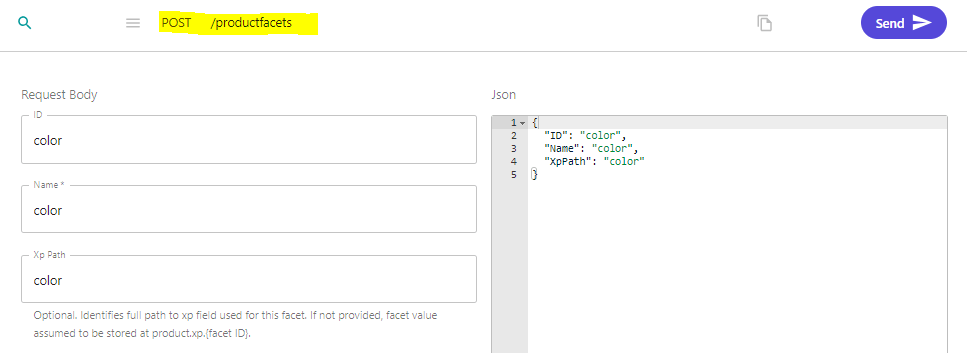
- Creating Product Facets: To add a facet to a product, you need to send a POST request to the
/productfacetsendpoint. Here’s an example of how to do this for a “color” facet. I will setup one for “size” aswell
2. Adding Facet Values to a Product: After setting up the facets, we can add the value to our product using the XP feature. In our product data, we include an XP object with our
desired fields:
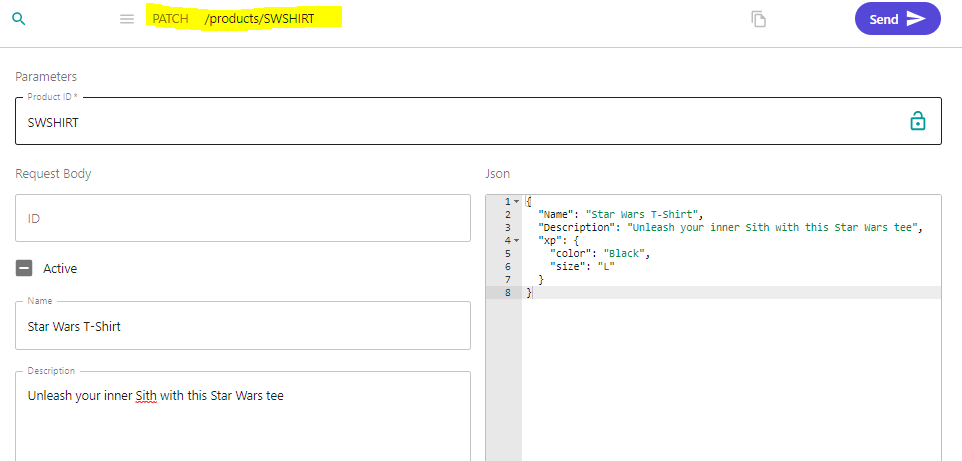
This product now has a color facet with the value “Black” and a size facet with the value “L”.
Fetching Products and Viewing Facets
With our facets set up, we can get our products and view the facets in the response. When we get all products, any XP fields that match product facets are returned in the API response. We can do this using the following GET request:
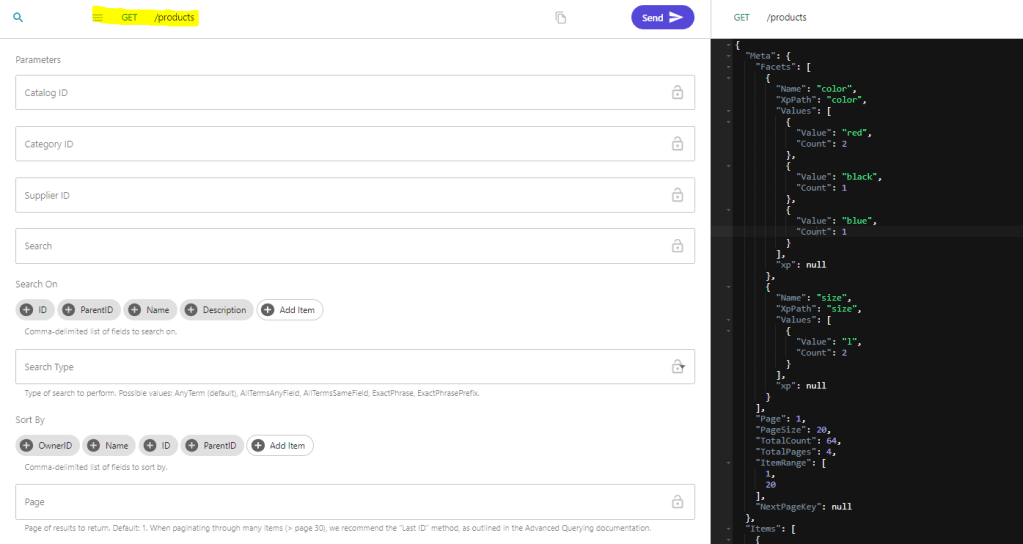
In the response, we will see a “Facets” field in the “Meta” object. This provides a list of all unique facet values and their counts. I had some other products already with facets, but now it added a facet for color black with count 1 and added one size L.
Querying Products by Facet
OrderCloud’s API provides the ability to filter products based on these facets. For example, if we wanted to fetch all products with the color “Black”, we could add a filter parameter to our GET request /products?xp.color=black
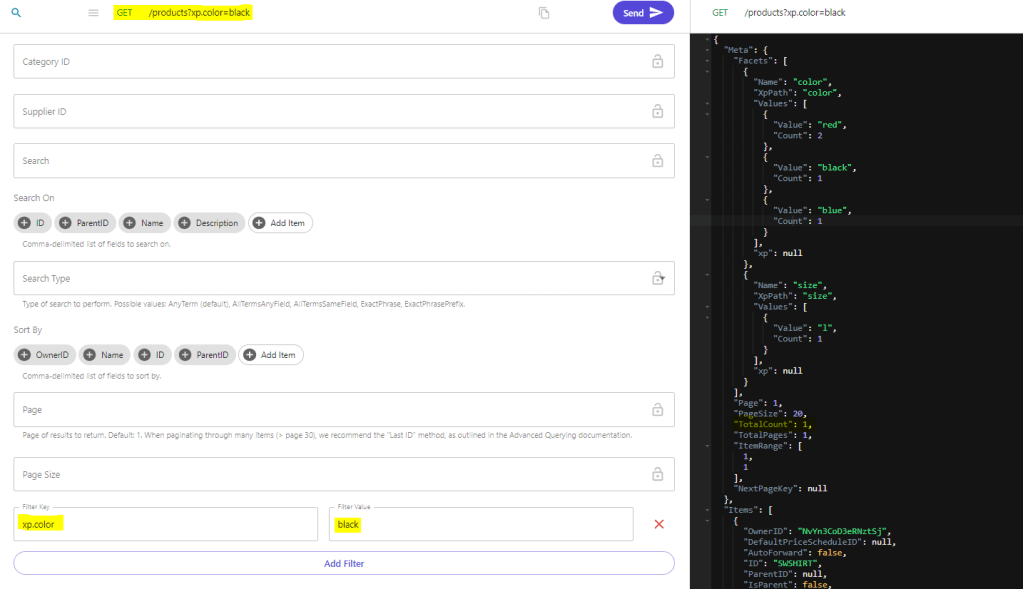
This will return all products with the color “Black” in the XP field.
Now you know how to use product facets in Sitecore OrderCloud. Thanks for reading and follow me on social media to get notifications on more Sitecore related blog posts!

