Setup a A/B/n test in SitecoreAI

In a previous post I wrote about Sitecore A/B/n test and the more text about it and how it works and why to use it etc. If you’re intrested here’s a link: HERE

In this post I want to give you some clear examples on how to setup a A/B/n test in Page builder in SitecoreAI.

1. Create your hypothesis

You should define a clear hypothesis and goal before starting an A/B test. The hypothesis should describe what change you are making, what outcome you expect, and how success will be measured. Even small changes, such as a new headline or a different button position, can be tested if they are tied to a measurable goal.

For example:

“By using a more engaging headline, we expect to increase engagement on the product page.”

2. Create the A/B/n test in Page builder

Select the component you want to test and press the “vial” icon. (Look at bottom of the post for troubleshooting if your missing the Vial icon)

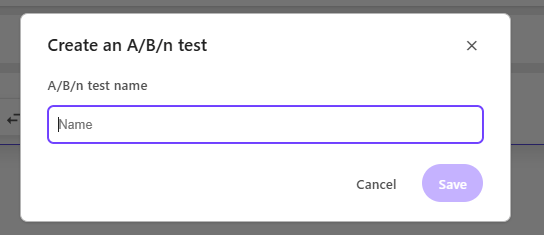
You will be prompted to set a name for the test:
3. Configure your variants

In the right pane window you will now see the window for your created A/B test. In here you can create more variants if you want to. Up to a maximum of 6 variants.
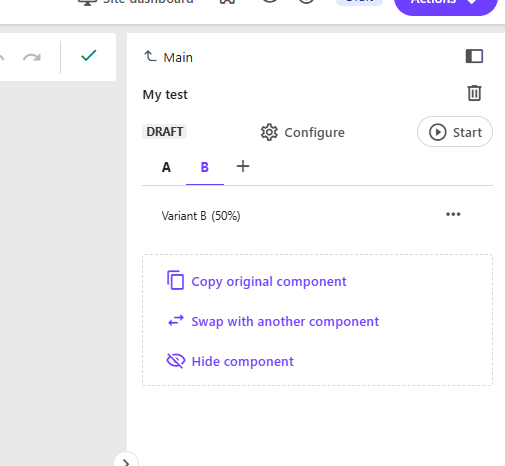
Either you “Copy the original component”. Meaning you take in what’s in the original control (Variant A) and to get started quickly, with maybe editing a text or other design elements you can change on your component.

Or you can “Swap with another component”, if you’re hypothesis is that another component will increase page views etc.

Finally you can just “Hide component” if you believe you get more engagement without that component on the page.

Remember that A/B/n testing is about testing your hypothesis. Even though it might be “We don’t know which of 3 variants will generate most engagement”. You can still test it.

Configure the test
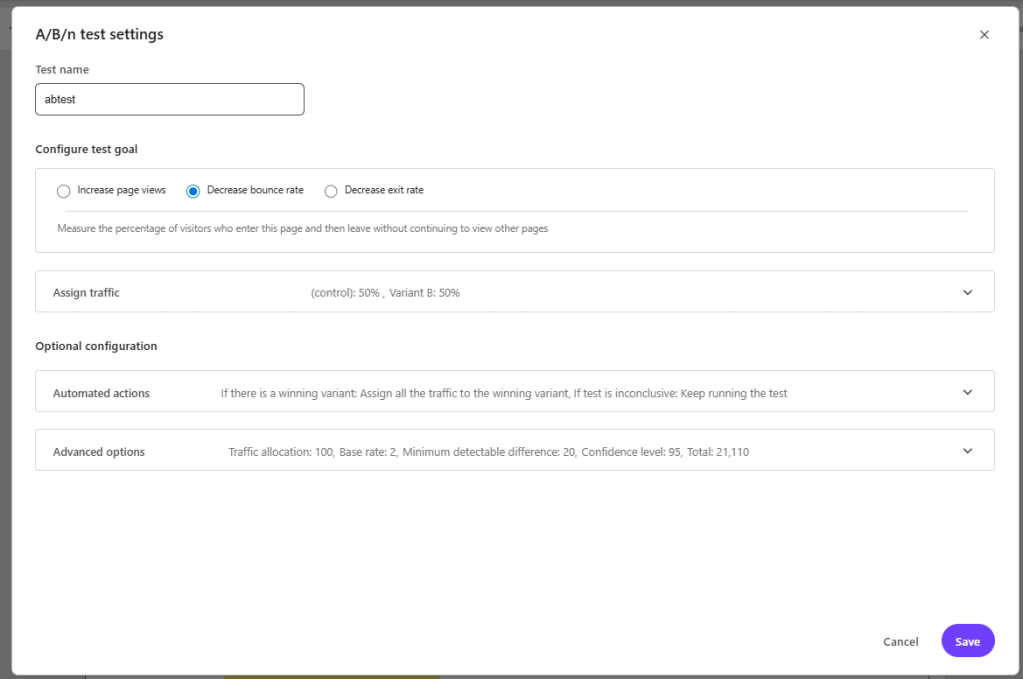
There are 4 configurations we can make in the test. By pressing “configure” we get this pop-up.

1. First you Configure the test goal – By selecting what you want to measure. Increase page views, Decrease bounce rate or Decrease exit rate. If you select Increase page views you must choose a page to measure.

2. Assign traffic – Here you can choose how many % of visitors you want to get to each variant. If you want 50/50 there is a button to help with that.

3. Automated actions (optional) – here you can setup what happens “If there is a winning variant” and “If test is inconclusive“. It could be that it automatically sets the winning variant as the new main and sends all traffic to that. Or you could choose not to. Same if the test is inconclusive, you could set that it should keep running the test or end it and send all traffic back to the control.

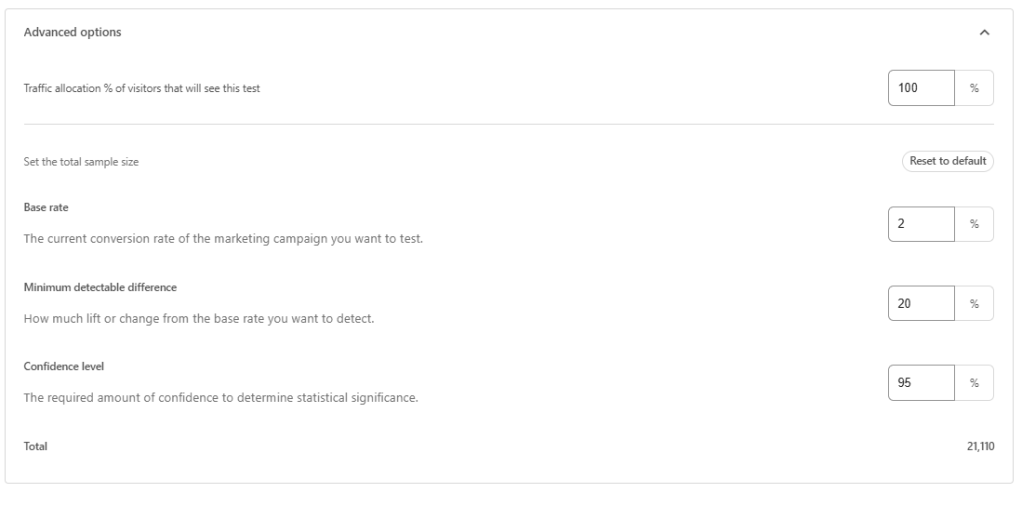
4. Advanced options (optional) – Here you can set more granular control over the test like

Traffic allocation (how many visitors will be exposed to the test itself). For example, setting this to 20% means only 20 out of every 100 visitors will participate in the test.
Base rate. Increasing the base rate decreases the required minimum sample size. 
Minimum detectable difference. Increasing this value decreases the required minimum sample size, but also makes the test less sensitive
Confidence level. This is the level of certainty required to confirm that differences between variants are statistically significant. A 95% confidence level is the accepted standard, meaning you can be 95% confident the results are accurate and not due to luck.

The default is a pretty good overall setup and only if you’re confident you could mixture with these settings.
Always run a test for the total sample size (Total in the bottom) for a valid test.
Troubleshooting note: If you can see the vial icon but can’t press it you probably have personalization setup on the page (I talked about that in my previous post, they can’t coexist on the same page).
If you can’t see the Icon at all you’re probably on the wrong JSS versions or missing packages in metadata.
You need to be on at least JSS version 22.1.0 and it needs to have metadata with all installed modules that start with @sitecore. You can get this information by requesting this endpoint: api/editing/config.

Go to Dev tools in your browser, go to network, filter on “api/editing/config”. In the response you should see the json with packages that start with “@sitecore”. If you’re missing any required package Sitecore won’t show the icon.

Atleast need sitecore-jss and sitecore-jss-nextjs (or react if your on that). Unsure if you specifically need others to make it appear.

  • @sitecore-cloudsdk/core: “<version number>”
  • @sitecore-cloudsdk/events
  • @sitecore-cloudsdk/utils
  • @sitecore-cloudsdk/personalize
  • @sitecore-feaas/clientside
  • @sitecore-jss/sitecore-jss
  • @sitecore-jss/sitecore-jss-dev-tools
  • @sitecore-jss/sitecore-jss-cli
  • @sitecore-jss/sitecore-jss-nextjs
  • @sitecore-jss/sitecore-jss-react
  • @sitecore/byoc
  • @sitecore/components

If you want to get detailed information read more on Sitecore Documentation here: https://doc.sitecore.com/sai/en/users/sitecoreai/a-b-n-testing.html
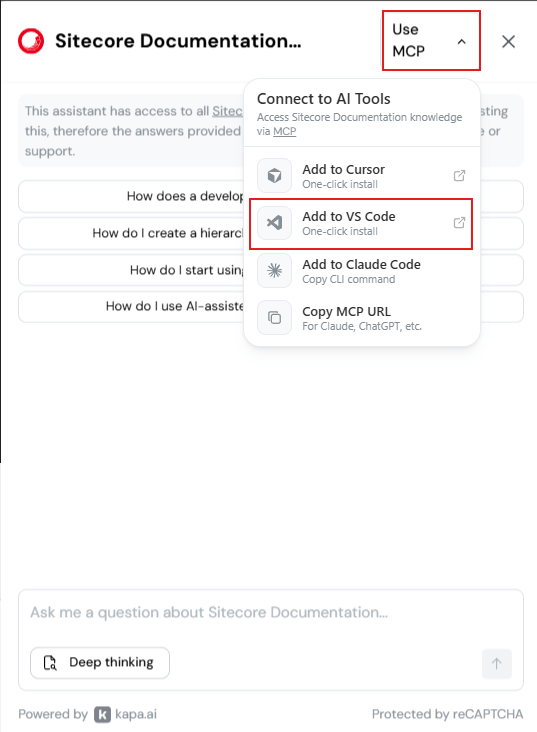
Sitecore docs AI and MCP

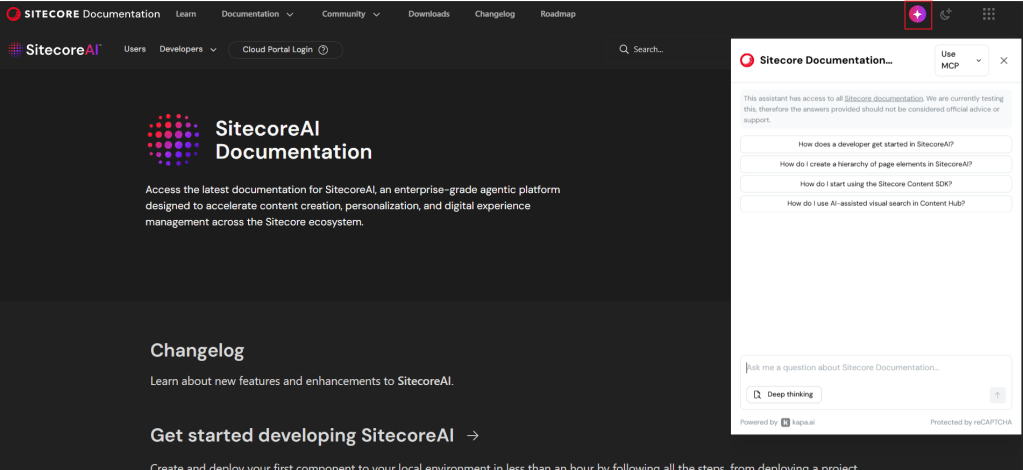
Did you know Sitecore Docs has a new AI feature that you can talk with a LLM chat that has been trained on the Sitecore documentation?

Just go to https://doc.sitecore.com/ and press the Icon in the header, marked in the picture, and you can start asking it questions.

Sitecores documentation has greatly improved the last years, not only in quality, but also in quantity. Sometimes it can be hard to find the right place to look at. And with this AI chat tool you can find answers fast!

There is also an MCP server you can connect to.
To add the MCP to your VS Code you can do following, or Cursor etc:

You can now also use the MCP in context with your code repository to get even more context for your question.

A short post but it gives huge impact, and fast!

NOTE from Sitecore:
“This assistant has access to all Sitecore documentation. We are currently testing this, therefore the answers provided should not be considered official advice or support.”

SitecoreAI’s A/B/n Testing: Optimize Your Website Today

A/B/n testing is a powerful tool used to understand which content engages your visitors the most. I’ll explain the concepts, share insights on how to get started, and what to consider when working with SitecoreAI’s A/B/n testing.

What is A/B/n testing and why is it important?

A/B/n testing is about comparing different versions of a webpage or a content element to see which version performs best. By formulating a clear hypothesis, for example, that a new color or text of a CTA button will increase page views by 10%, you can make data-driven decisions that improve user experience and conversion rates.

What is the difference between A/B testing and A/B/n testing?

The main difference between A/B testing and A/B/n testing is the number of versions, so-called variants, being tested.

A/B testing compares two variants, while A/B/n testing evaluates multiple variants simultaneously. An A/B test is a simple comparison between two options and tests a specific change to determine which performs better. An A/B/n test evaluates several design options, layouts, or headlines at the same time and provides a faster overview of which of many ideas works best.

What distinguishes SitecoreAI from traditional A/B testing tools?

SitecoreAI differs from traditional A/B testing tools in that it is tightly integrated with the entire Sitecore ecosystem and can use artificial intelligence to optimize tests. This includes:

Faster insights: SitecoreAI helps analyze results in real time and can identify winning variants faster than manual testing. With SitecoreAI, you can compare up to six variants.

Automation: You can configure rules to automatically direct all traffic to winning variants once results are statistically significant, reducing manual work.

Integration with Sitecore: Because the testing tool is built into the platform, you can easily connect A/B/n testing to other Sitecore features, such as forms and content management, without needing external tools.

Effective default goals: SitecoreAI comes with predefined goals (e.g., page views, form submissions, bounce rate) that make it easy for marketers to get started quickly without advanced statistical knowledge.

In short, SitecoreAI makes it possible to combine A/B/n testing with AI-driven insights in a way that is difficult to achieve with standalone testing tools. It saves time, delivers more accurate results, and simplifies optimization of the entire website.

How A/B/n testing works in SitecoreAI

First, you develop a hypothesis for your test. For example, reducing the number of fields in a form may increase form submissions by 10% compared to the current version.

Based on your hypothesis, you define the test goals. SitecoreAI includes predefined standard goals:

  • Increase page views
  • Increase form submissions
  • Reduce bounce rate
  • Reduce exit rate

You then create a control variant (Variant A) and a test variant (Variant B) and split traffic between them, either 50/50 or using another distribution you decide. As mentioned, you can create up to six variants.

You determine how long the test should run, but Sitecore recommends running it for at least one week to ensure statistically significant results.

SitecoreAI then provides insights into which variant performed best, or whether there is no difference (a null result). You can configure the system so that the winning variant automatically receives all traffic, or if results are inconclusive, that the test is extended or traffic is reverted to the original variant.

What you can test

Anything you can change on a page or in a form can be tested. Examples include:

  • Content: Images, CTA copy, headlines, and components
  • Sitecore forms: Number of fields, button placement
  • Design and layout

Tips for effective testing

  • Change as few variables as possible at a time. This makes results clearer and easier to interpret.
  • Prioritize areas of the page with the greatest impact, such as hero banners or purchase buttons.
  • Run tests regularly to account for changes in visitor behavior over time.
  • Set a confidence score (e.g., 95%) to determine when a winning variant should receive all traffic.
  • Note that A/B/n testing does not work simultaneously with personalization. Because personalization shows different content to different users, it can conflict with the purpose of the test. If you want to run an A/B/n test on a personalized page, the solution is to temporarily pause personalization while the test is running.

Sitecore custom personalization rule

In this case i’m going to use personalization to check whether a visitor has logged in through our custom login portal or not. Based on this I want to show different datasources for let’s say our Hero banner. Check my previous post how to use rules and select datasources here.

1. Create custom rule

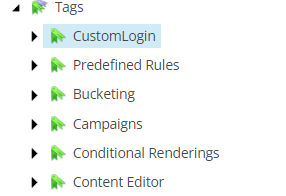
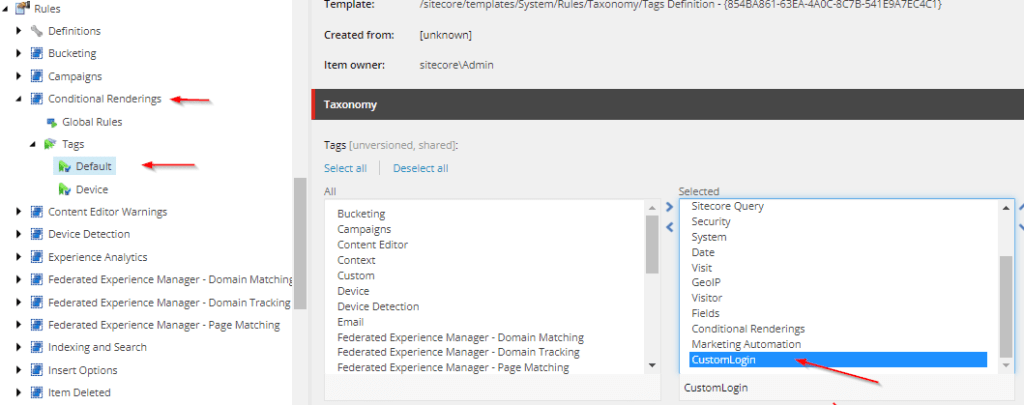
Step 1 – First we create a new Tag under “/sitecore/system/Settings/Rules/Definitions/Tags”

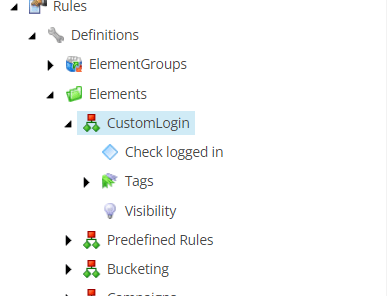
Step 2 – Then go and create a new Element under “/sitecore/system/Settings/Rules/Definitions/Elements/”

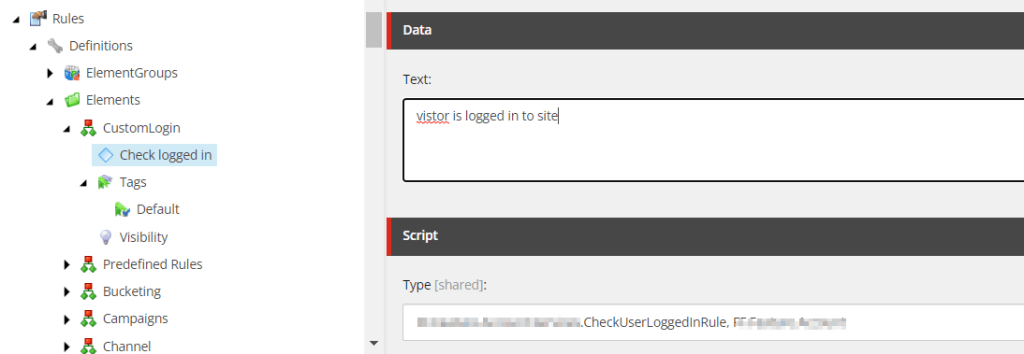
Step 3 – Insert new “Condition” under your Element. In my case I don’t want any other conditions than a bool check so i’ll just write the text like below.

  • Text = text displayed in the Edit Rule Box in Experience editor. This support complex conditions like
    "where the http request [ParameterName,,,name] parameter [OperatorId, StringOperator,,compares to] [Value,,,specific value]" Useful blogpost by pushpaganan explains more
  • Type = Your namespace and assembly to your custom code.

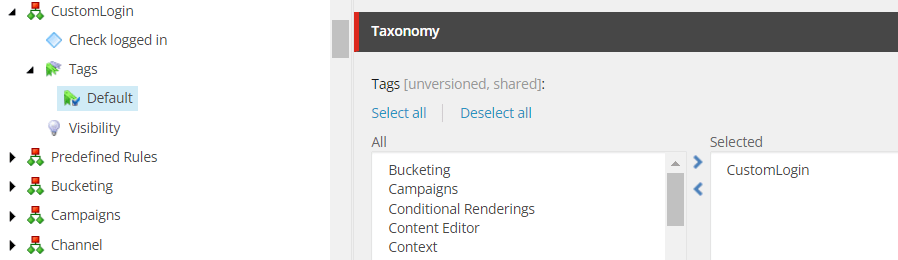
Step 4 – Now select the “Default” tag under “Tags” and select your custom tag

Step 5 – Lastly we need to add this tag to a conditional rendering at “/sitecore/system/Settings/Rules/Conditional Renderings/Tags/Default”


2. Create custom rule code

For a simple check in bool I setup following code which checks if the visitor is logged in and returns true or false. You’ll have to set your own code to verify if logged in depending on how your team is doing this.

public class CheckUserLoggedInRule<T> : WhenCondition<T> where T : RuleContext
{
    protected override bool Execute(T ruleContext)
    {
      Assert.ArgumentNotNull(ruleContext, "ruleContext");
      if(<your bool check if logged in>)
        return true;

      return false;
    }
}

3. Add the newly created rule on a component

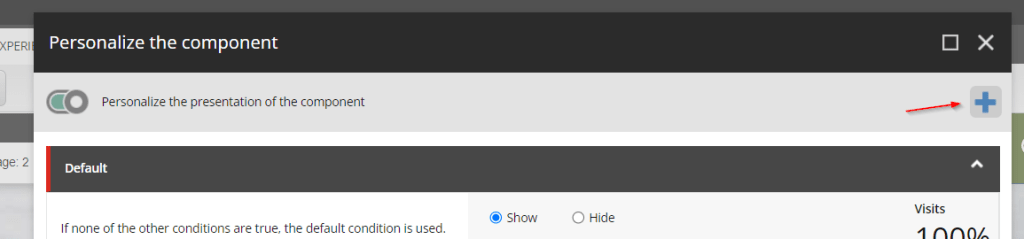
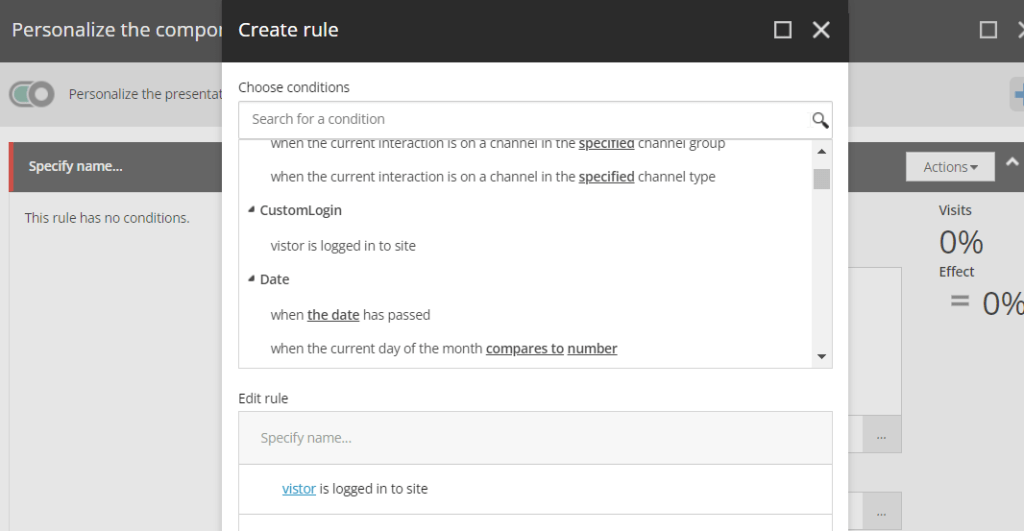
Finally we can add the personalization rule in Experience Editor on our component. Press the + then add your new rule as a condition. Then select a different datasource and your ready to go.


You can preview what it will look like when switching between the new rule and the default in Experience Editor.

How to personalize content in Sitecore 9.3

I want to make a short post with the easy peasy version how to setup personalization in Sitecore 9.3. I will post links and resources at the bottom of the post for those who want to read the in depth guides and posts out there how it all works.
I will return with a second part for personalization with more advanced custom rules.

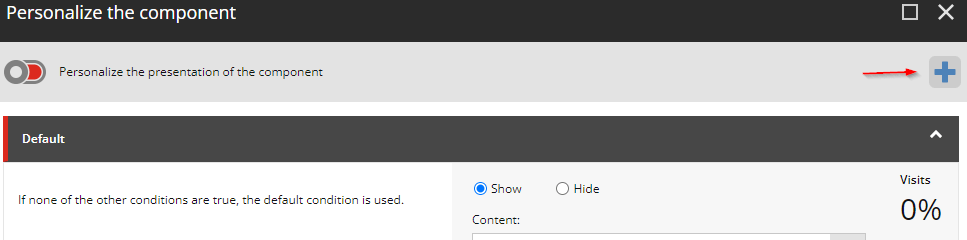
1.

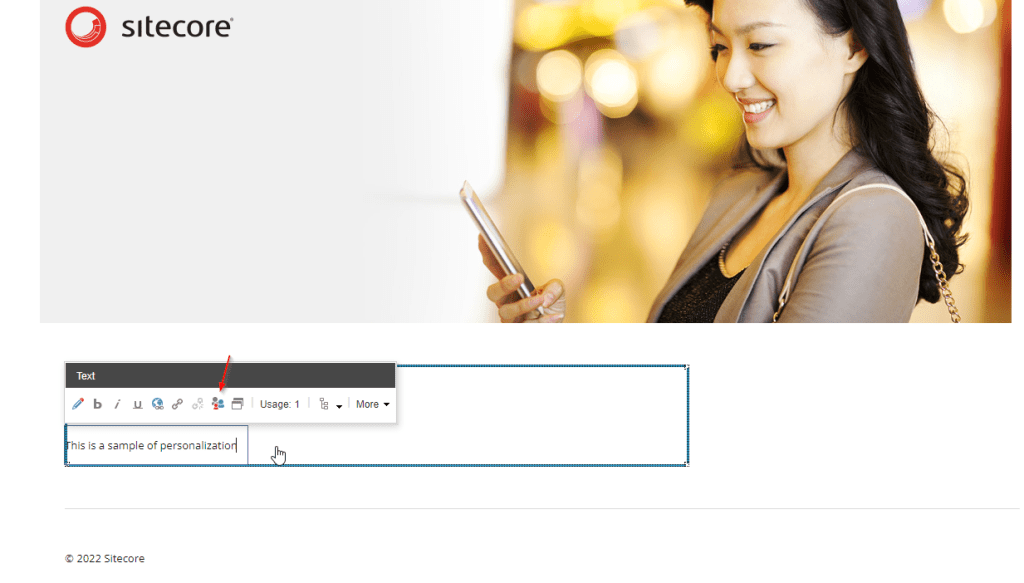
Go to where you want to personalize in Experience Editor and press the personalization button

2.

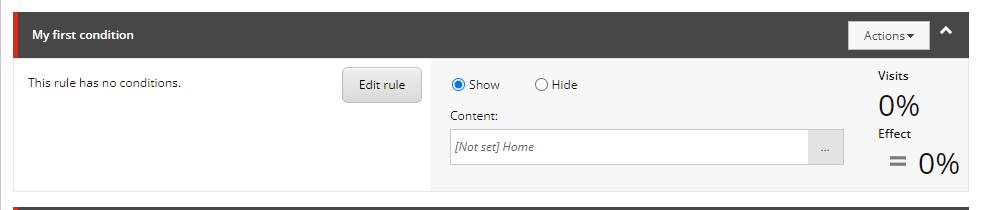
Press the Add button to add a personalization rule.

There are a lot of predefined rules you can use, you can also set up custom rules and conditions (check for part 2).

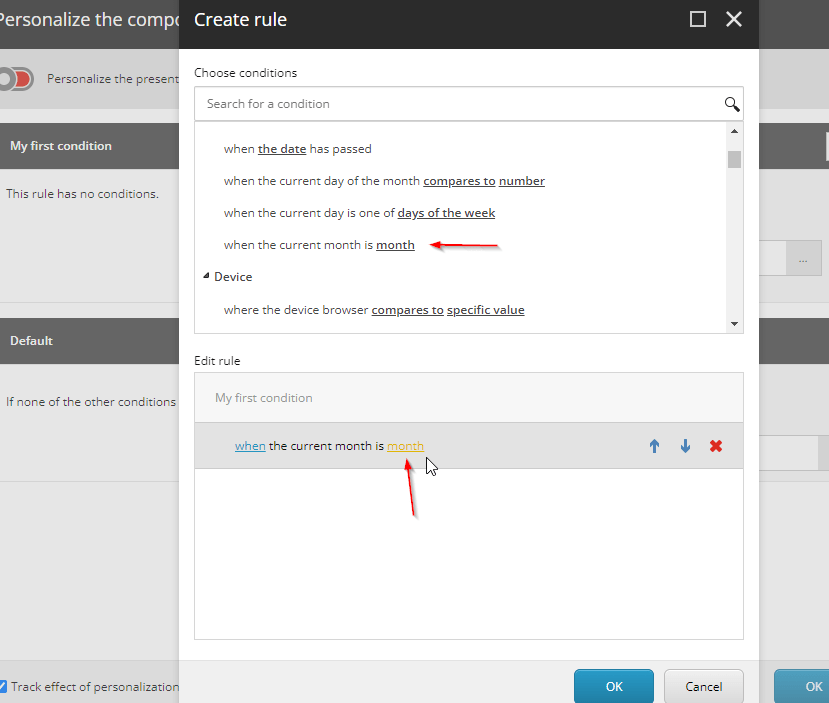
Now you’ll get your new rule and you can edit the conditions by pressing “Edit rule”.

In this case I’ll set a condition that if it’s a certain month I want to show another text. So lets do that by selecting it in the list and then pressing the yellow text “month” to set what the value should be.

3.

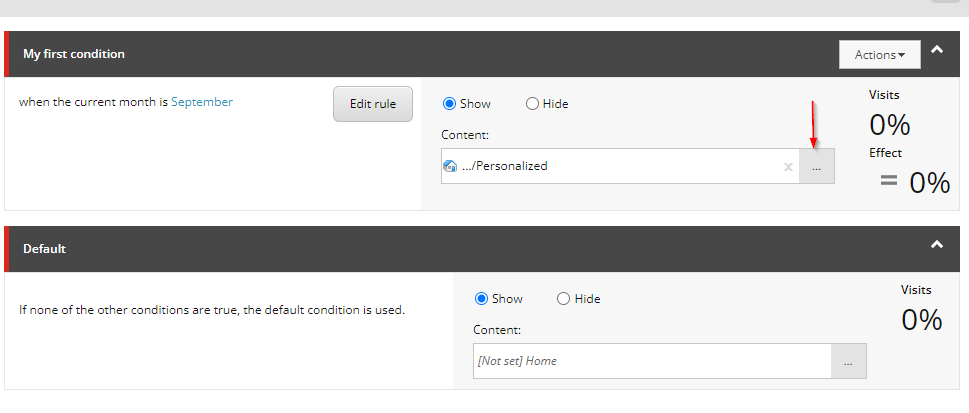
Now we set what content should be shown instead by selecting another datasource for the same rendering by press “…”. Create one if you haven’t already and then select it. You can choose whether it will Show or Hide depending on the condition.

4.

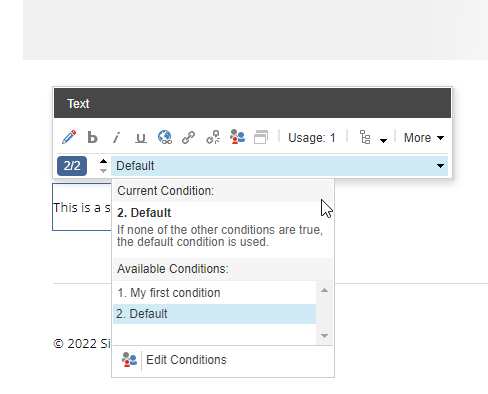
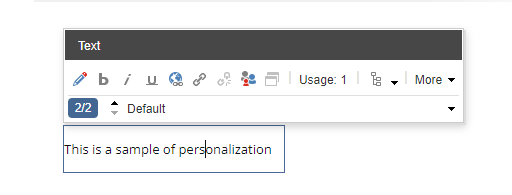
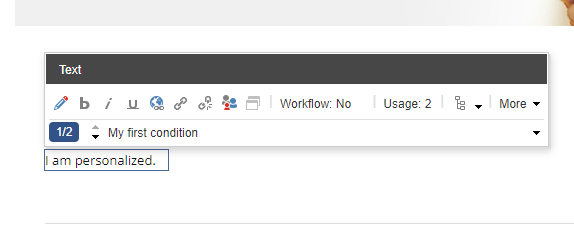
Now you can select between the new condition and the default to see what the difference will be. In this simple case I’ve just set a new text value. If the condition of my first rule is met that specified content will show.

Default content:

Personalized content:

Resources:

Custom personalization: https://pushpaganan.home.blog/2020/01/06/sitecore-personalization-using-custom-personalization-rule/

https://ankitjoshi2409.wordpress.com/tag/personalization/