In a previous post I wrote about Sitecore A/B/n test and the more text about it and how it works and why to use it etc. If you’re intrested here’s a link: HERE
In this post I want to give you some clear examples on how to setup a A/B/n test in Page builder in SitecoreAI.
1. Create your hypothesis
You should define a clear hypothesis and goal before starting an A/B test. The hypothesis should describe what change you are making, what outcome you expect, and how success will be measured. Even small changes, such as a new headline or a different button position, can be tested if they are tied to a measurable goal.
For example:
“By using a more engaging headline, we expect to increase engagement on the product page.”
2. Create the A/B/n test in Page builder

Select the component you want to test and press the “vial” icon. (Look at bottom of the post for troubleshooting if your missing the Vial icon)
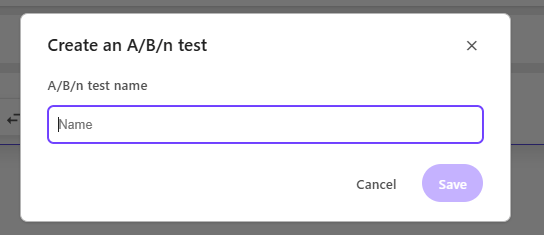
You will be prompted to set a name for the test:
3. Configure your variants
In the right pane window you will now see the window for your created A/B test. In here you can create more variants if you want to. Up to a maximum of 6 variants.
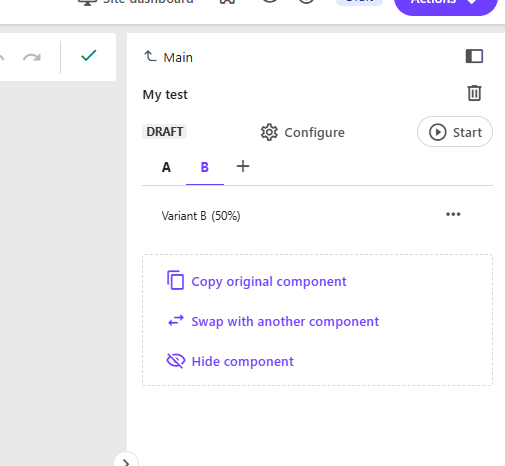
Either you “Copy the original component”. Meaning you take in what’s in the original control (Variant A) and to get started quickly, with maybe editing a text or other design elements you can change on your component.
Or you can “Swap with another component”, if you’re hypothesis is that another component will increase page views etc.
Finally you can just “Hide component” if you believe you get more engagement without that component on the page.
Remember that A/B/n testing is about testing your hypothesis. Even though it might be “We don’t know which of 3 variants will generate most engagement”. You can still test it.
Configure the test
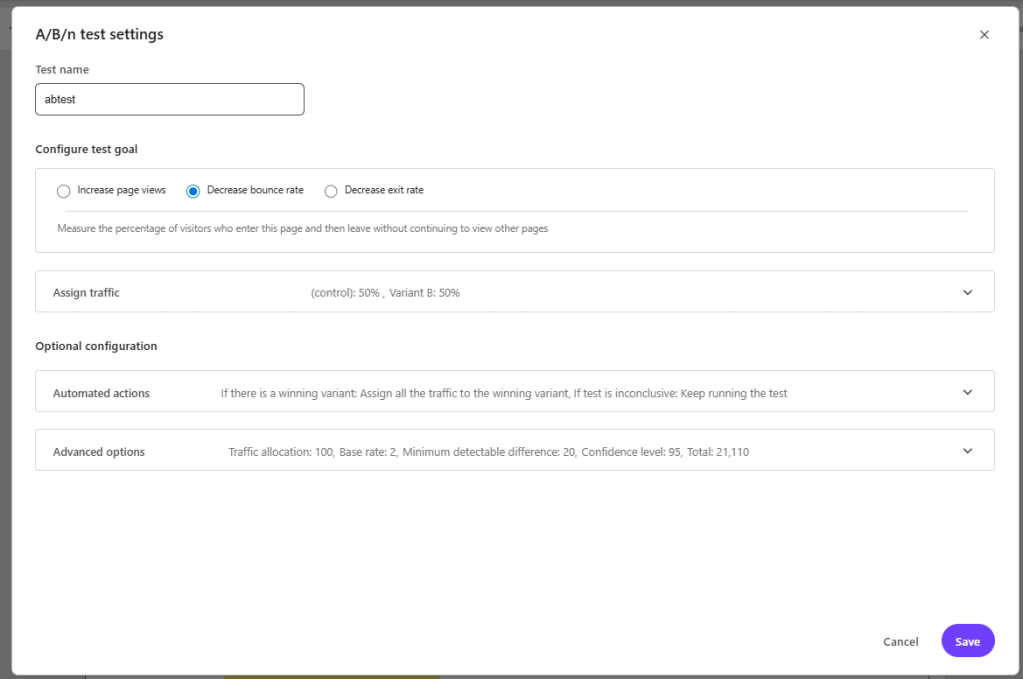
There are 4 configurations we can make in the test. By pressing “configure” we get this pop-up.
1. First you Configure the test goal – By selecting what you want to measure. Increase page views, Decrease bounce rate or Decrease exit rate. If you select Increase page views you must choose a page to measure.
2. Assign traffic – Here you can choose how many % of visitors you want to get to each variant. If you want 50/50 there is a button to help with that.
3. Automated actions (optional) – here you can setup what happens “If there is a winning variant” and “If test is inconclusive“. It could be that it automatically sets the winning variant as the new main and sends all traffic to that. Or you could choose not to. Same if the test is inconclusive, you could set that it should keep running the test or end it and send all traffic back to the control.
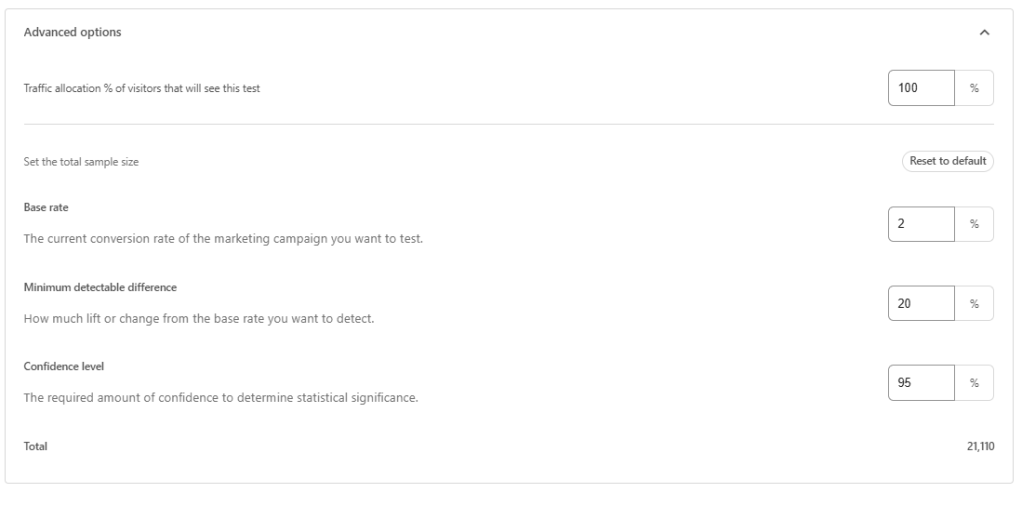
4. Advanced options (optional) – Here you can set more granular control over the test like
– Traffic allocation (how many visitors will be exposed to the test itself). For example, setting this to 20% means only 20 out of every 100 visitors will participate in the test.
– Base rate. Increasing the base rate decreases the required minimum sample size.
– Minimum detectable difference. Increasing this value decreases the required minimum sample size, but also makes the test less sensitive
– Confidence level. This is the level of certainty required to confirm that differences between variants are statistically significant. A 95% confidence level is the accepted standard, meaning you can be 95% confident the results are accurate and not due to luck.
The default is a pretty good overall setup and only if you’re confident you could mixture with these settings.
Always run a test for the total sample size (Total in the bottom) for a valid test.
Troubleshooting note: If you can see the vial icon but can’t press it you probably have personalization setup on the page (I talked about that in my previous post, they can’t coexist on the same page).
If you can’t see the Icon at all you’re probably on the wrong JSS versions or missing packages in metadata.
You need to be on at least JSS version 22.1.0 and it needs to have metadata with all installed modules that start with @sitecore. You can get this information by requesting this endpoint: api/editing/config.
Go to Dev tools in your browser, go to network, filter on “api/editing/config”. In the response you should see the json with packages that start with “@sitecore”. If you’re missing any required package Sitecore won’t show the icon.
Atleast need sitecore-jss and sitecore-jss-nextjs (or react if your on that). Unsure if you specifically need others to make it appear.
- @sitecore-cloudsdk/core: “<version number>”
- @sitecore-cloudsdk/events
- @sitecore-cloudsdk/utils
- @sitecore-cloudsdk/personalize
- @sitecore-feaas/clientside
- @sitecore-jss/sitecore-jss
- @sitecore-jss/sitecore-jss-dev-tools
- @sitecore-jss/sitecore-jss-cli
- @sitecore-jss/sitecore-jss-nextjs
- @sitecore-jss/sitecore-jss-react
- @sitecore/byoc
- @sitecore/components
If you want to get detailed information read more on Sitecore Documentation here: https://doc.sitecore.com/sai/en/users/sitecoreai/a-b-n-testing.html
 Sitecore Tackled