XConnect.Operations.FacetOperationException: AlreadyExists

Had an issue with contact interactions not saving as expected and looked in Xconnect instance log file and saw this error message.

Sitecore.XConnect.Operations.FacetOperationException: Operation #0, AlreadyExists, Contact <contactId>, Classification

We have some custom code that saves and updates contacts so I started digging to find the culprit.

I stumbled upon this know issue in Sitecore 9.x, which I was using, that is fixed in Siteore 10.
https://support.sitecore.com/kb?id=kb_article_view&amp;sysparm_article=KB0397292

But before I installed the package from the Known Issue, I wanted to make sure my custom code was solid and that I wasn’t making any errors there myself. Spoiler, it was, so take a look in your custom code before (if any).

My issue was that I misunderstood the process of how contacts are retrieved with the xConnect API works. I thought I could just get a contact by some Facet, like an email, and then I would get that contact with all it’s Facets and values.

In my case I wanted to set the “Personal” Facet if it was null and then save it.
But I got the contact without the ExpandOptions{PersonalInformation.DefaultFacetKey… which meant that the Facet “Personal” was always null.
So when I submitted it, it threw an error because I was trying to add a Facet that already existed on the contact. With the updated ExpandOptions like below, I was now getting the correct Facets on the contact and it worked like a charm.

var identifier = new IdentifiedContactReference(Constants.EmailSource, email);
var contact = context.Get(identifier, new ExpandOptions(PersonalInformation.DefaultFacetKey, EmailAddressList.DefaultFacetKey));

if (contact.GetFacet<PersonalInformation>(PersonalInformation.DefaultFacetKey) == null)
{
    PersonalInformation personalInfoFacet = new PersonalInformation() {FirstName = firstname, LastName = lastname};
    context.SetFacet(existingContact, PersonalInformation.DefaultFacetKey, personalInfoFacet);
}

context.Submit();

Hope this helps bring some clarity as it did for me! 🙂
Sitecore Scheduled Tasks – Database Agent

I just want to briefly explain how the database agent work because I’ve noticed a lot of confusion about it and why it behaves like it does.

– “Why aren’t my tasks running!?”
– “Is there something wrong with my interval?”

These are just some of many questions that might pop up as a new developer or if it’s a new feature for you to work on with Sitecore.

What is Scheduled Tasks?

It’s first and foremost a tool in Sitecore where you can run code within an interval.
Sitecore has an internal Database agent that runs on an interval based on your configuration. Default is 10 minutes.

So every 10 minutes Sitecore goes over all it’s schedule task items and checks the interval to see if it’s due to run or not.
Note: After an app pool recycle all tasks will run the first time your database agent runs if it’s a valid schedule that has correct From-date, To-date and days to run. i.e. 20200101|20990101|127|01:00:00.

You can always trigger Schedule tasks manually. For instance you can use Sitecore Powershell Extension to do this.
But for some reason, maybe extending the scheduler with custom code, you want to see how it behaves when run automatically through the database agent.

Master Database Agent

Master_Database_Agent is defined in the Sitecore.Processing.config. The interval can be patched to change the interval if you want in a patchconfig.

<configuration xmlns:patch="http://www.sitecore.net/xmlconfig/">
  <sitecore>
      <scheduling>
          <agent name="Master_Database_Agent" type="Sitecore.Tasks.DatabaseAgent">
              <patch:attribute name="interval">00:05:00</patch:attribute>
          </agent>
      </scheduling>
  </sitecore>
</configuration>

Tasks interval

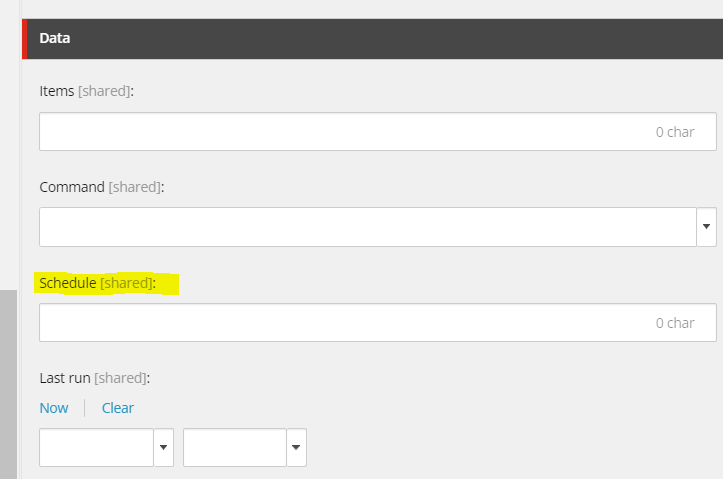
Did you know that “Schedule” on a schedule item also is a link to an old Sitecore doc page explaining how to setup tasks? Link here

You can press the “Schedule” label to reach the url

This clearly explains how to setup intervals for running on specific days, From-dates, To-dates etc.
Always a helpful tool when working with schedule tasks.

How to personalize content in Sitecore 9.3

I want to make a short post with the easy peasy version how to setup personalization in Sitecore 9.3. I will post links and resources at the bottom of the post for those who want to read the in depth guides and posts out there how it all works.
I will return with a second part for personalization with more advanced custom rules.

1.

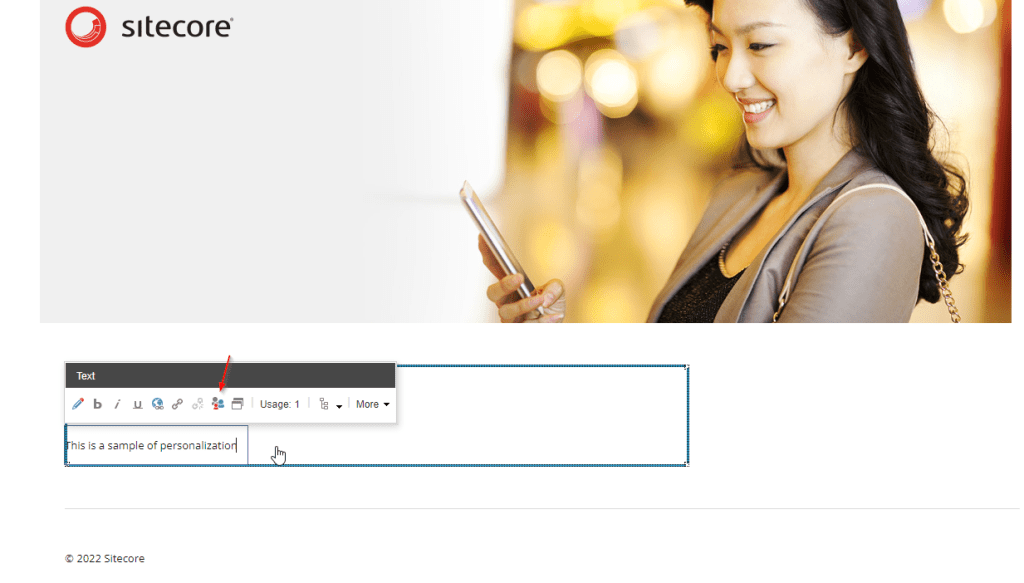
Go to where you want to personalize in Experience Editor and press the personalization button

2.

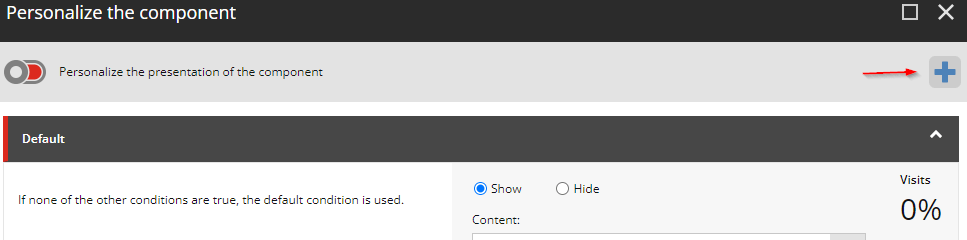
Press the Add button to add a personalization rule.

There are a lot of predefined rules you can use, you can also set up custom rules and conditions (check for part 2).

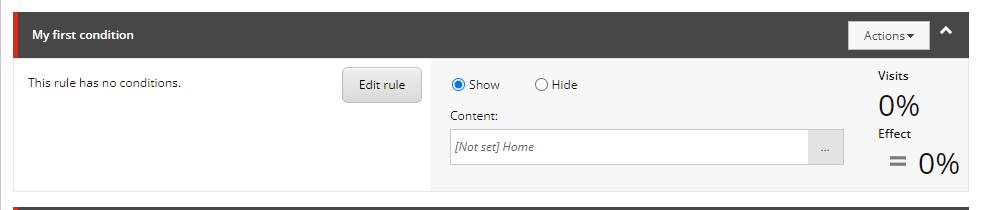
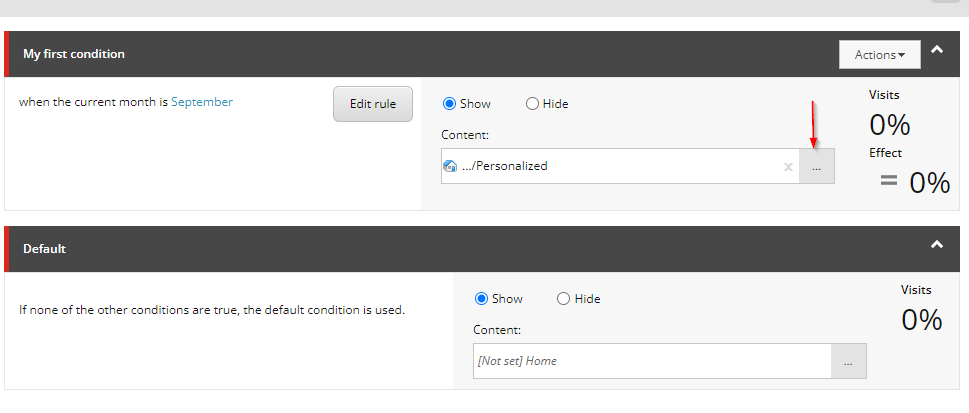
Now you’ll get your new rule and you can edit the conditions by pressing “Edit rule”.

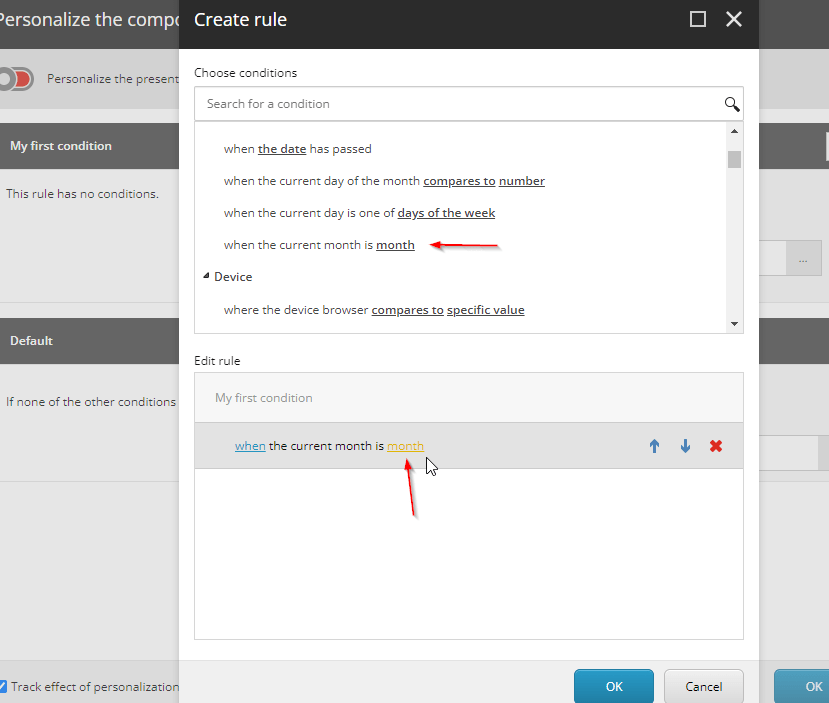
In this case I’ll set a condition that if it’s a certain month I want to show another text. So lets do that by selecting it in the list and then pressing the yellow text “month” to set what the value should be.

3.

Now we set what content should be shown instead by selecting another datasource for the same rendering by press “…”. Create one if you haven’t already and then select it. You can choose whether it will Show or Hide depending on the condition.

4.

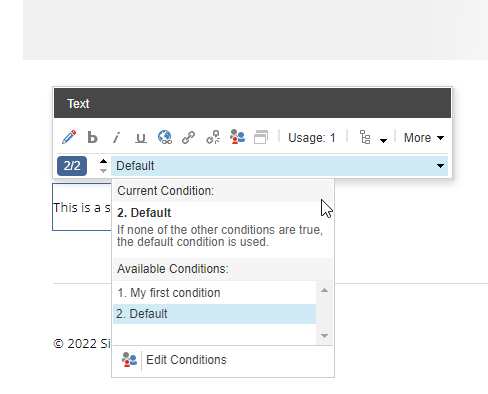
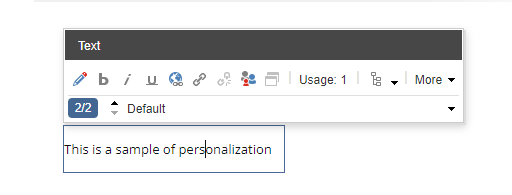
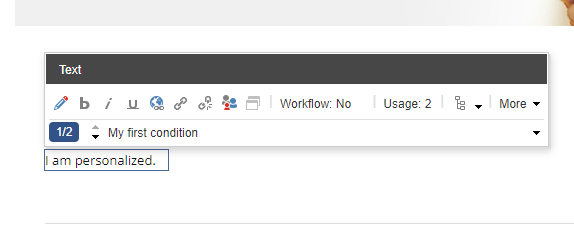
Now you can select between the new condition and the default to see what the difference will be. In this simple case I’ve just set a new text value. If the condition of my first rule is met that specified content will show.

Default content:

Personalized content:

Resources:

Custom personalization: https://pushpaganan.home.blog/2020/01/06/sitecore-personalization-using-custom-personalization-rule/

https://ankitjoshi2409.wordpress.com/tag/personalization/

Sitecore & Solr “connection lost”

Search was not working and when I went to the Solr admin page it said “Connection lost”. The exact reason for why this happened in the first place i’m still investigating. But to fix the error first was to reset the Solr instance and recycle the App pool of the site.
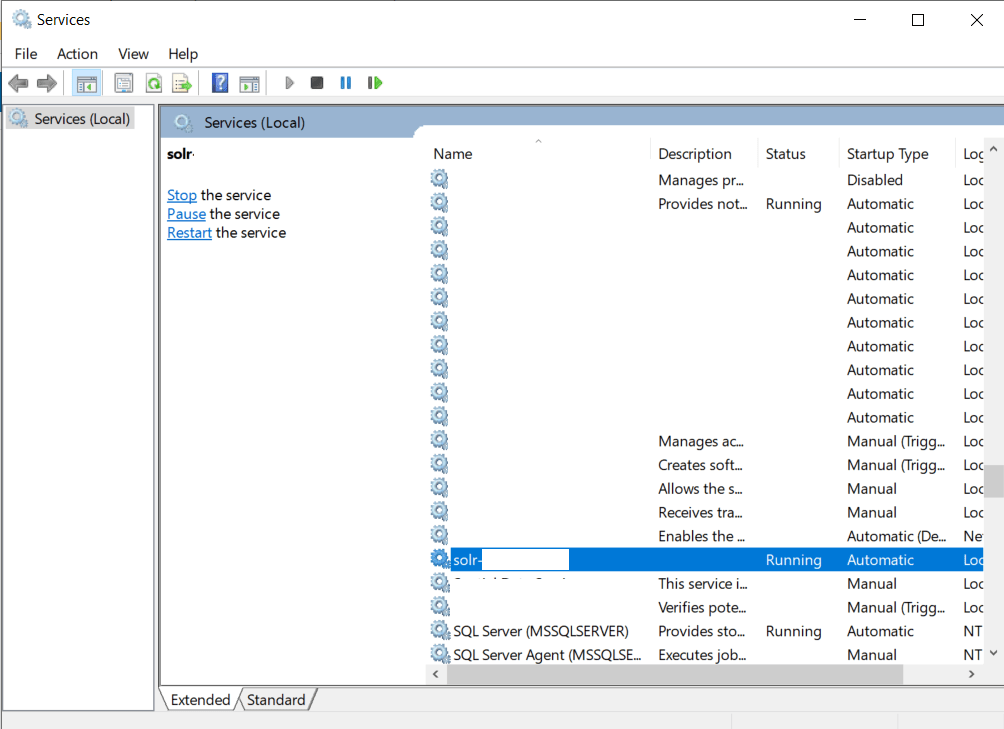
You can do this by command line or from services window and locate your Solr service, right click -> restart.

Select the service and right-click -> restart

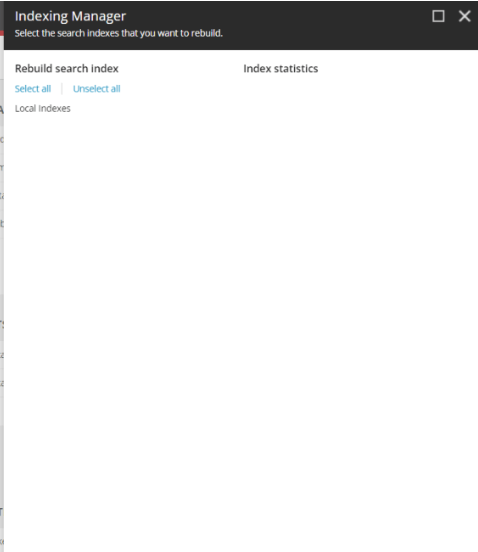
After this I confirmed my Solr was spinning correctly by visiting the admin page again, but it still didn’t work. I looked up the indexing manager in Sitecore configuration from the dashboard. This showed empty. No indexes.

Still confused, I found this post on StackExchange with the below answer:

  • Make sure your Sitecore configured properly for SOLR within \App_Config\Sitecore\ContentSearch
  • Check your connectionstrings for SOLR is configured properly or not
  • Access SOLR admin (with browser, make sure it’s https) to check whether it’s on or not
  • If it’s on, check again if your configured index matches with SOLR Core Admin
  • If everything’s ok, can try to recycle app pool for your site and wait a few minutes Check again from the control panel

The last point worked for me, I recycled the app pool and things started working properly again.

Hopefully this helps if you get similar problems.

Sitecore shutting down – initialization error

The problem: All I could see in the log file was that error message “sitecore shutting down – initialization error“. This didn’t tell me much of where the issue was coming from except when Sitecore is spinning up.

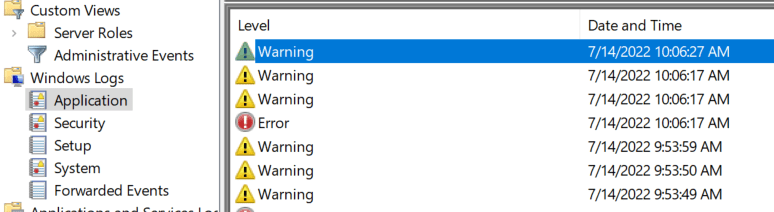
So I took a look in the Event viewer to check out any logs there.
Open “Event Viewer” by clicking the “Start” buttonClick “Control Panel” > “System and Security” > “Administrative Tools”, and then double-click “Event Viewer”.

Go to Windows Logs -> Application and you’ll see the latest log inputs at the top.

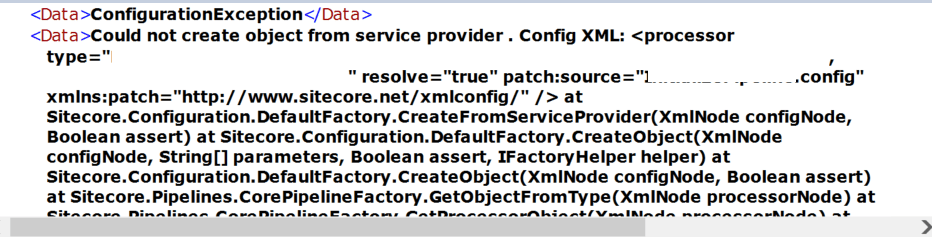
Click it and read the details. There I saw my problem.

It was a config file that was hooking into the initialize pipeline and had a faulty dependency. Whops. Fix that and bada boom, Sitecore starts to spin up again.

Add custom buttons to Dashboard/Launchpad

A neat way to execute or show some custom functionalities is to create a custom button for the Sitecore Dashboard/Launchpad (whatever you call it, I say Dashboard).
This is very simple and you can easily make the button either for example

a) open an aspx
b) show custom views
c) make an API request to one of your controller actions

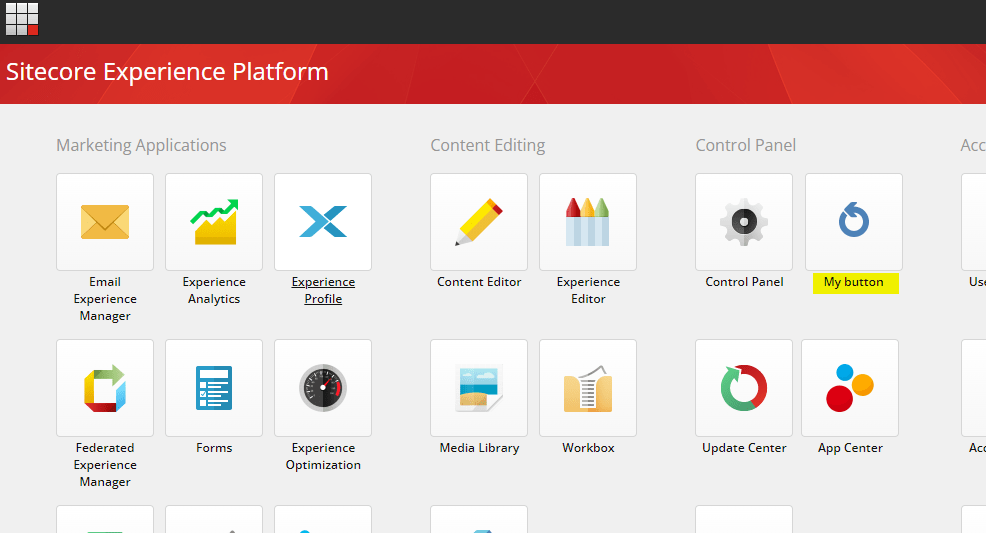
Sitecore dashboard
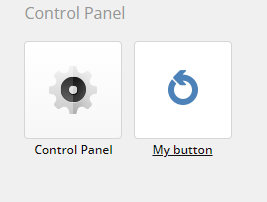
Here i’ve added “My button” to the Control Panel section

Step 1

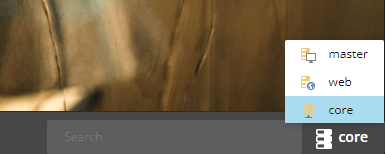
Switch to Core database by going to the Desktop view and in the lower right corner switch database. (Or enter the querystring &sc_content=core)
Then enter the Content Editor

Step 2

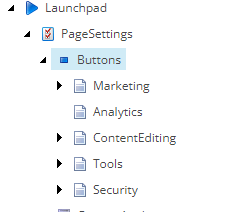
Locate /sitecore/client/Applications/Launchpad/PageSettings/Buttons and you will find the sections corresponding to the Dashboard/Launchpad

Step 3

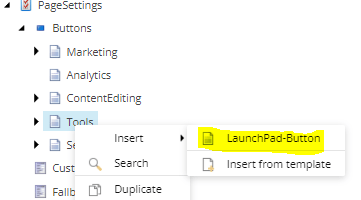
Choose what section you want to put your button in and right-click the item (Tools = Control Panel) and add a new Launchpad-button

Step 4

Fill in the button as you want.
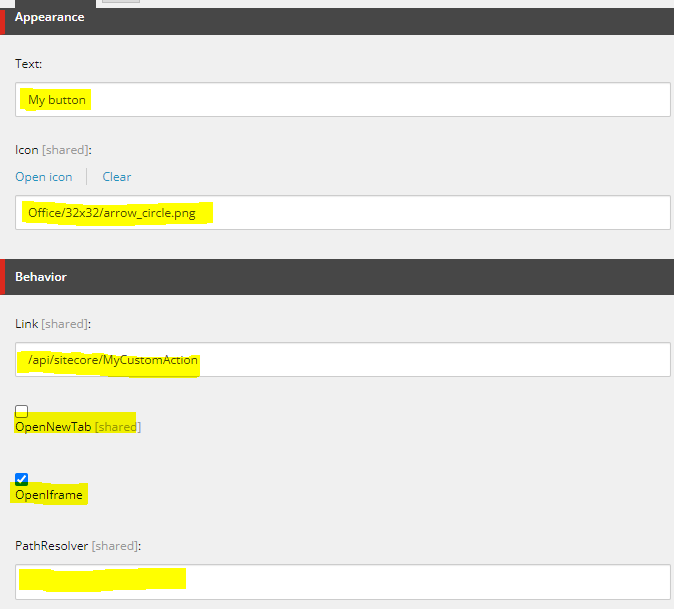
Text: The text for the button on the Dashboard/Launchpad
Icon: Icon for the button
Link: You can link directly to a Sitecore Item or a controller action within the sitecore api as i’ve done. (or your own api)
OpenNewTab: Clicking the button opens it in a new tab.
OpenIframe: Clicking the buttons opens an iframe.
PathResolver: Namespace and dll name

That’s it. It should now show up on the Dashboard/Launchpad

Sitecore Solr – Select specific fields with LINQ to Sitecore

If you’re expecting a lot of results from a Solr query, it can be quite a perfomance hit.
If you then only really need 1 or 2 fields from the document, there is a neat way with LINQ to Sitecore to select only the fields you need.

var items = searchContext.GetQueryable<BaseSearchResultItem>().Where(i => i.TemplateId == <templateid>).Select(i => new { i.Heading, i.ItemId }).ToList();

By using the .Select() you can specify which fields you want to get from the document.
This query will result in a Solr query like following:

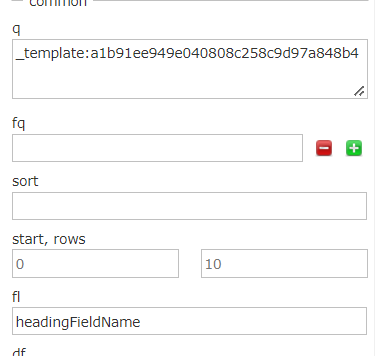
?q=(_template:(<templateId>))&start=0&rows=1000000 &fl=headingFieldName,_uniqueid,_datasource&fq=_indexname:(sitecore_master_index)

In Solr it’s called “Field List” or “fl” and in Solr UI you can test the effect before compiling your code like this, which I prefer to do.

Good luck with your Sitecore Search.

Sitecore xConnect error GetEntityOperation

This error message caught my eye on xConnect in Sitecore 9.3, which looked like this.

"[Error] Sitecore.XConnect.Operations.GetEntityOperation`1[Sitecore.XConnect.DeviceProfile]: Sitecore.Xdb.Collection.Failures.DataProviderException: A network-related or instance-specific error occurred while establishing a connection to SQL Server. The server was not found or was not accessible. Verify that the instance name is correct and that SQL Server is configured to allow remote connections. (provider: Named Pipes Provider, error: 40 - Could not open a connection to SQL Server) ---> System.Data.SqlClient.SqlException: A network-related or instance-specific error occurred while establishing a connection to SQL Server. The server was not found or was not accessible. Verify that the instance name is correct and that SQL Server is configured to allow remote connections. (provider: Named Pipes Provider, error: 40 - Could not open a connection to SQL Server) ---> System.ComponentModel.Win32Exception: The system cannot find the file specified"

This issue was because of Xdb had wrong ServerName in the [*.Collection.ShardMapManager] database.


The database and table “[*.Collection.ShardMapManager].[__ShardManagement].[ShardsGlobal]” that contains [ServerName] and [DatabaseName] columns. Replace with your ServerName and hopefully this will be the issue in your case.

Hope this helps if you get a similar error.