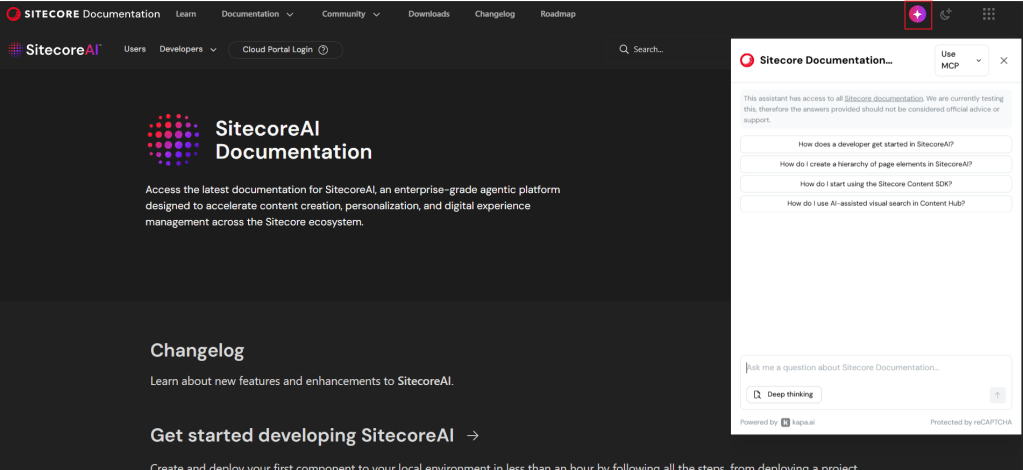
Did you know Sitecore Docs has a new AI feature that you can talk with a LLM chat that has been trained on the Sitecore documentation?
Just go to https://doc.sitecore.com/ and press the Icon in the header, marked in the picture, and you can start asking it questions.
Sitecores documentation has greatly improved the last years, not only in quality, but also in quantity. Sometimes it can be hard to find the right place to look at. And with this AI chat tool you can find answers fast!
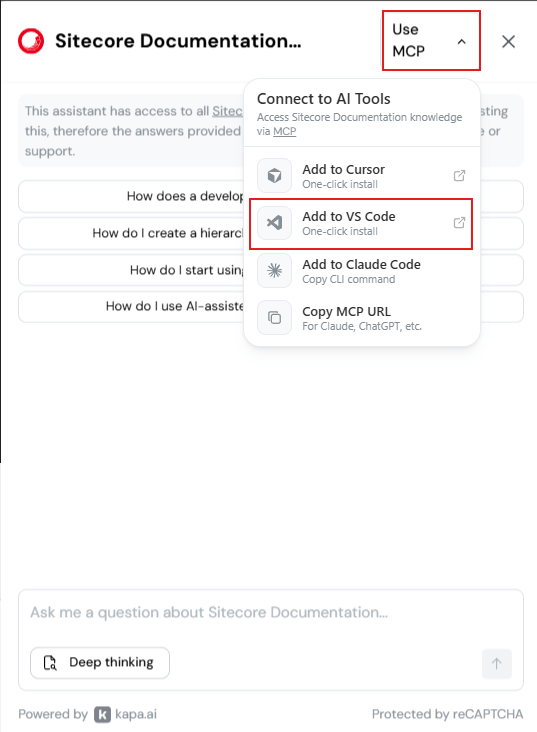
There is also an MCP server you can connect to. To add the MCP to your VS Code you can do following, or Cursor etc:
You can now also use the MCP in context with your code repository to get even more context for your question.
A short post but it gives huge impact, and fast!
NOTE from Sitecore: “This assistant has access to all Sitecore documentation. We are currently testing this, therefore the answers provided should not be considered official advice or support.”
Translate a page or even translate an entire site from one language to another is a powerful yet simple to use tool in SitecoreAI.
Lets break it down.
First lets talk about Brand Kits
Brand Kits allow marketing or communication teams to configure how AI should generate content within Sitecore.
By creating Brand Kits, organizations can define instructions and brand guidelines that AI features in SitecoreAI will follow. When editors then use AI functionality they can select a Brand Kit. Brand kits provide:
A centralized location for brand instructions
Reusable configuration
Consistent tone and messaging in your content
By default, administrators can see all brand kits, but they have the power to grant users access as needed to specific brand kits. This is very important and good feature!
Knowledge
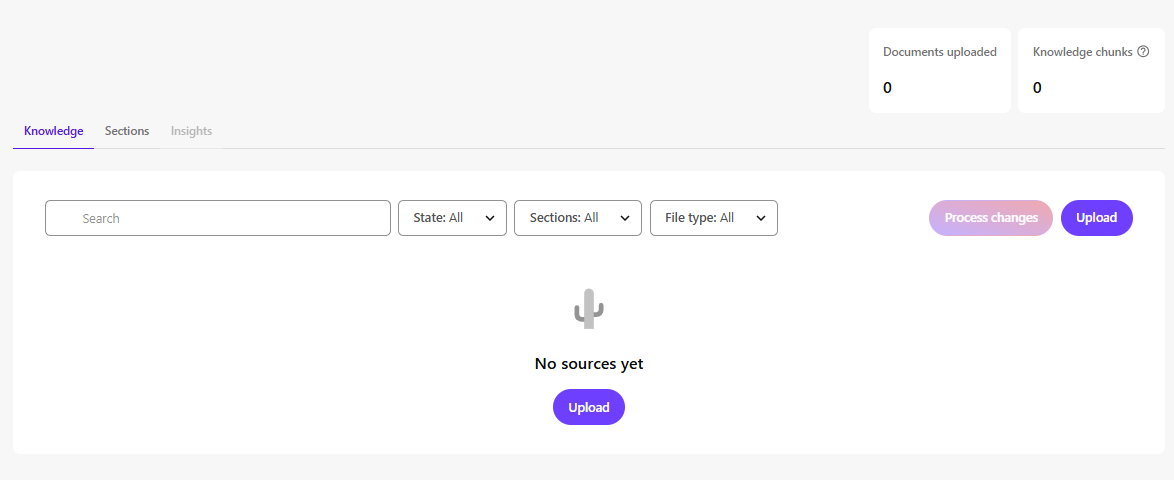
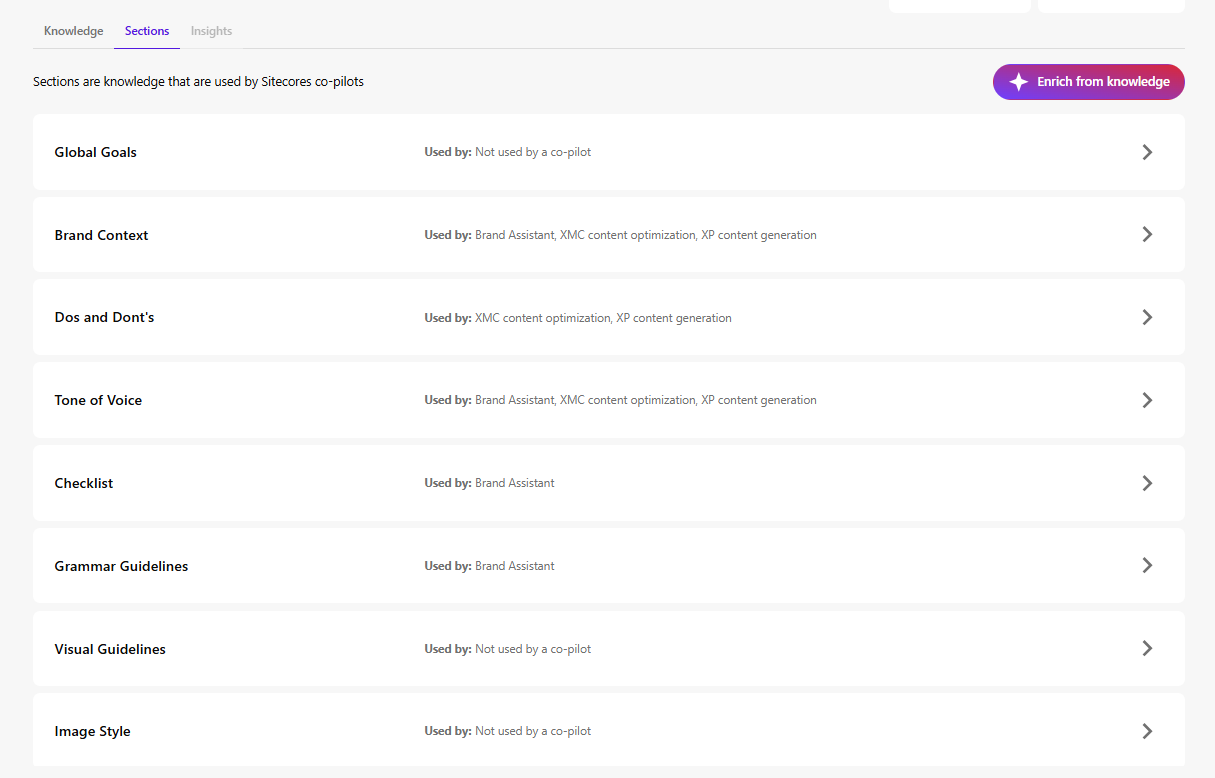
Within a Brand Kit, the Knowledge tab allows you to upload documents that help build your brand knowledge base. Basically if you upload documents here SitecoreAI will populate the otherwise empty sections on the Brand Kit based on those documents.
Examples of supported documents:
Brand books
Visual guidelines
Style guides
Graphic manuals
Sections
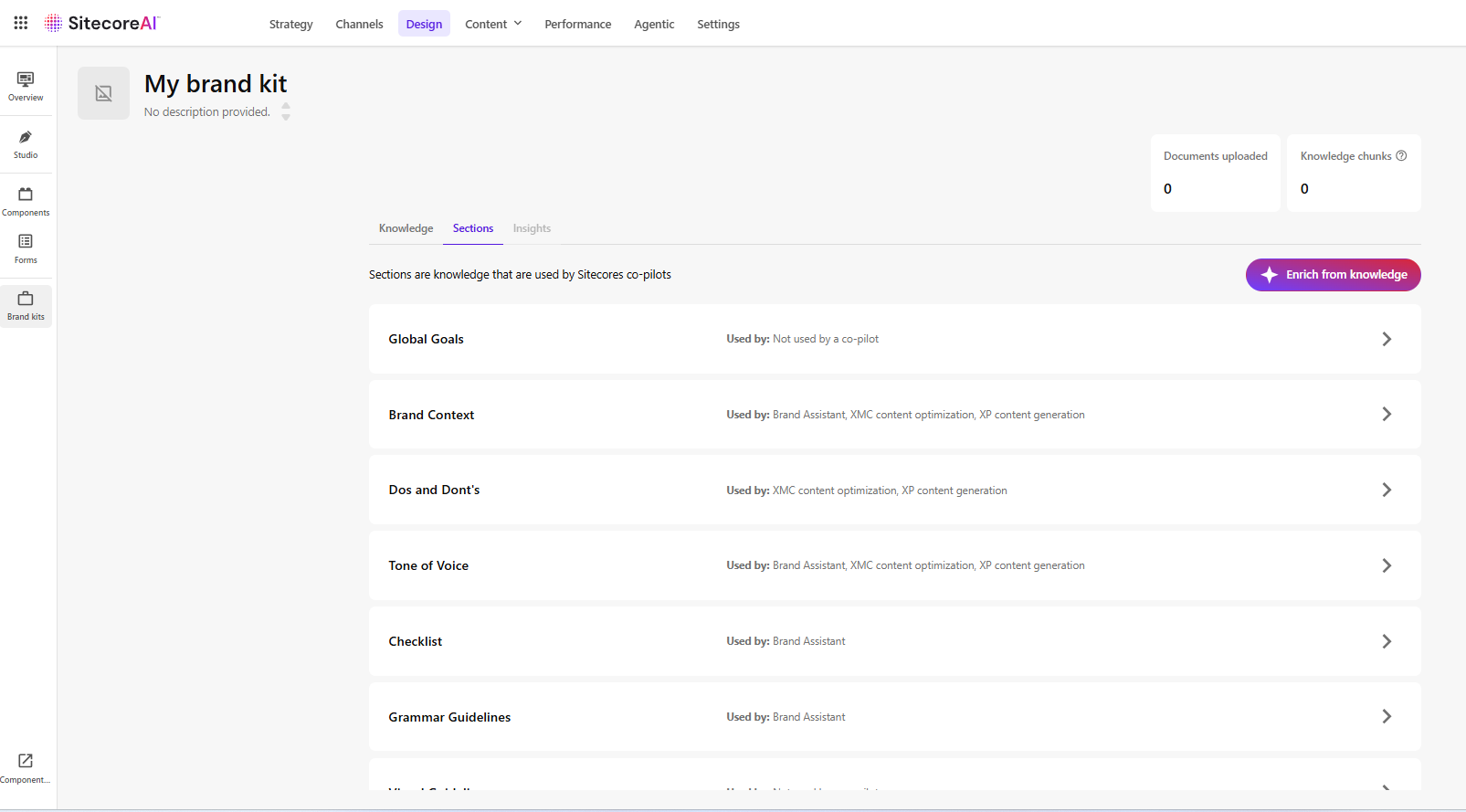
In the tab Sections, you can setup the configuration of the kit.
Sections can be populated using the uploaded Knowledge documents (via the button in the top-right corner). However, you might want to look over and edit these if needed. It provides a strong starting point, but manual refinement is typically required.
Examples of sections include:
Brand Context – Describes your brand’s purpose and positioning
Do’s and Don’ts – Guidelines ensuring AI-generated content aligns with tone and values (e.g., formal, academic, relaxed)
Tone of Voice – Attributes such as friendliness or confidence that define brand personality
You can setup multiple Brand Kits and use them for different goals, like campaigns, audience etc.
Brand Kits are not required to use translation features, but they can significantly improve consistency and quality.
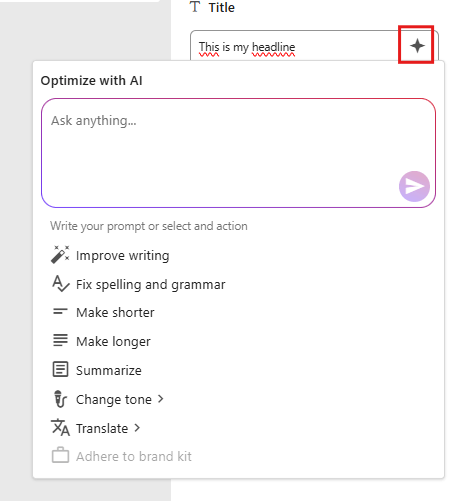
Inside Page Builder, several built-in AI tools support Brand Kits. Like this image below, you can select a field you want to edit, click the “Optimize with AI”-button in red. Here you can use the prompt, translate, or adhere to a brand kit.
Agentic Studio – Translation assistant
The Agentic Studio is a centralized place for AI agents, which helps to automize work for you. There’s a ton of out-of-the-box agents from Sitecore, and one of them is the Translator, which allows you to translate content to multiple languages at the same time while keeping the Brand context.
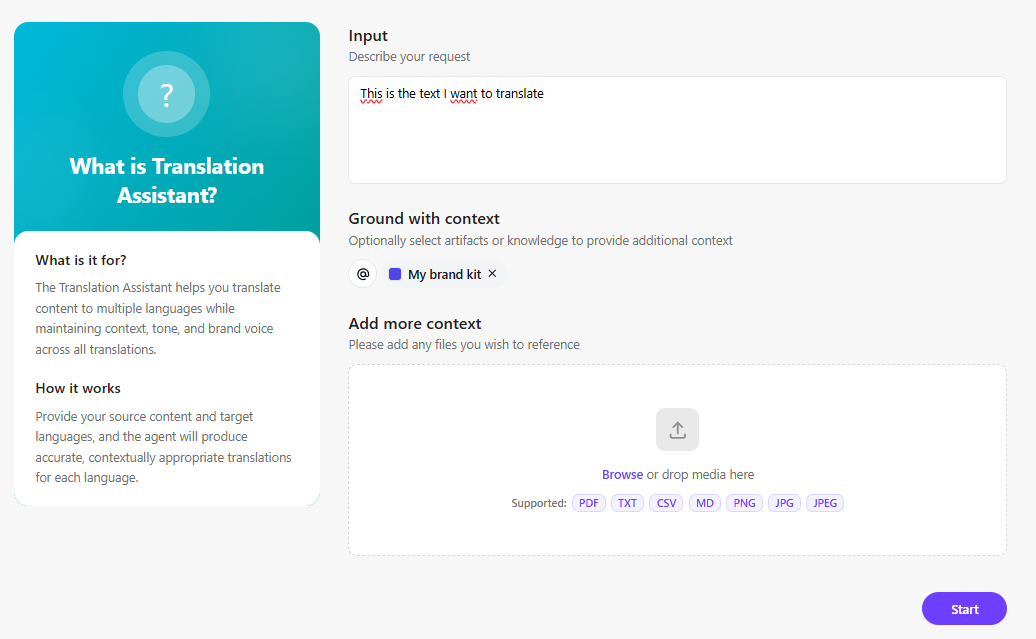
This is the first interface of the Translation Assistant. You have your input, then you can add context; in this case, I’ve added my Brand Kit as context to get the tone of voice, etc., that I’m interested in. You could also add more context to the translation if you wish.
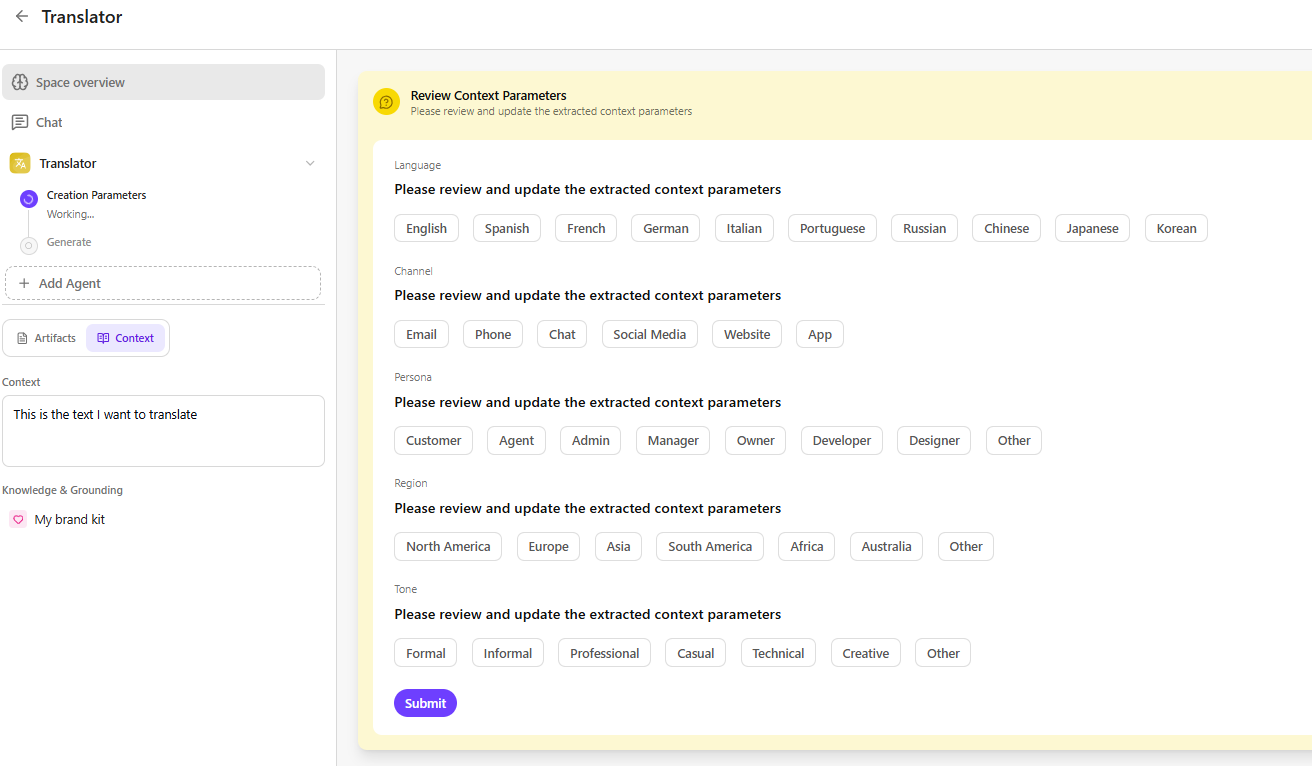
Then we get this window. Here we can set the desired parameters for this translation job. Like selecting which languages, persona, tone etc. Then the artifacts are created for each translation for you to use.
Page translation
This is maybe the highlight of this blogpost. This functionality does not require Brand Kits.
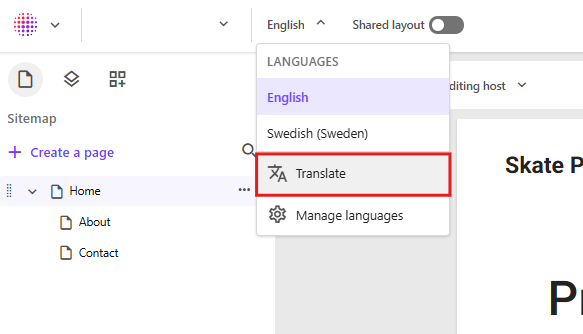
For example, you can navigate to a page that has been created and setup content in English. In the language dropdown at the top of Page Builder, select Translate.
A dialog will appear allowing you to choose one of the available site languages. The system will then traverse all references and related items in Sitecore for that page and generate, for example, a Swedish version. All text content will be translated, display names on items will receive a Swedish version, and image alt texts will also be translated if an alt text exists.
The following field types are translated:
Single-line text
Multi-line text
Rich text
General Link (link title, link text)
General Link with Search (link title, link text)
Image (alt text)
Shared fields are skipped. These are template fields marked as SHARED, since they are identical across all language versions.
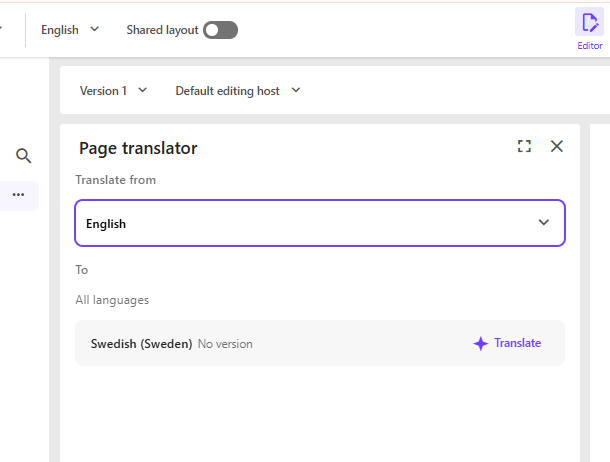
Choose source language and then click Translate on the desired language. Note that your language only pops up here if it’s configurated for the site.
Site translation
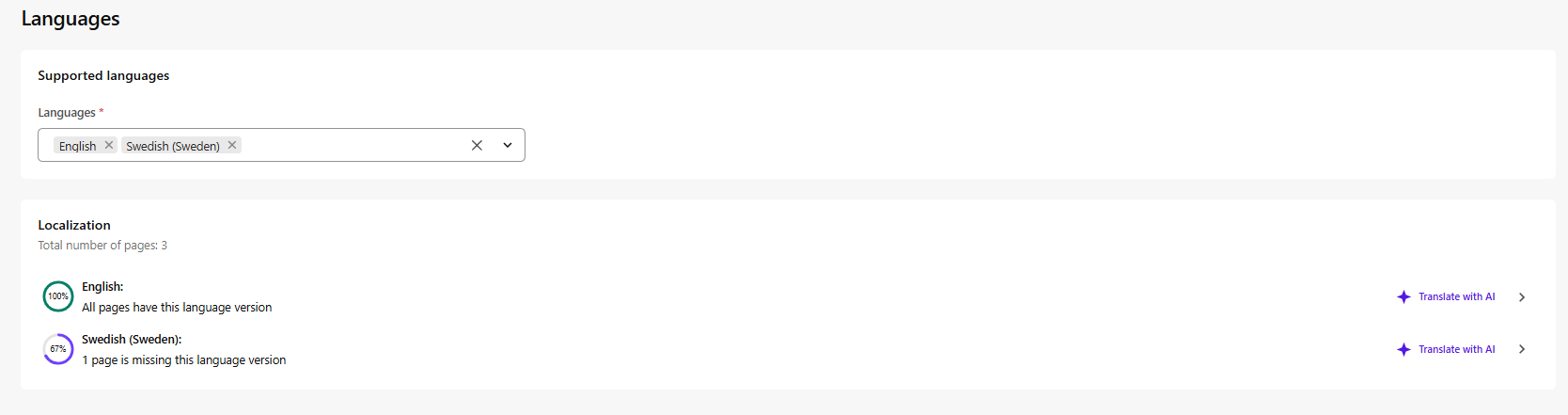
If you instead go to manage languages from page builder you will get to this language page, here you have the button “Translate with AI” which does the same as the page translation but for the entire site. Very powerfull stuff!
The full site translation functionality is available for admins or Sitecore Client Site Managing roles.
That’s what I wanted to go over with Sitecore AI translation and some info on the Brand kits also if you’re interested in that. Hope this helps!