I’m going to show you how to install Sitecore Publishing Service version 6.0 as the .NET Core runtime option.
1. Download all the essential packages & prerequisites.
- Start by downloading the package “Publishing Service .NET Core host” here.
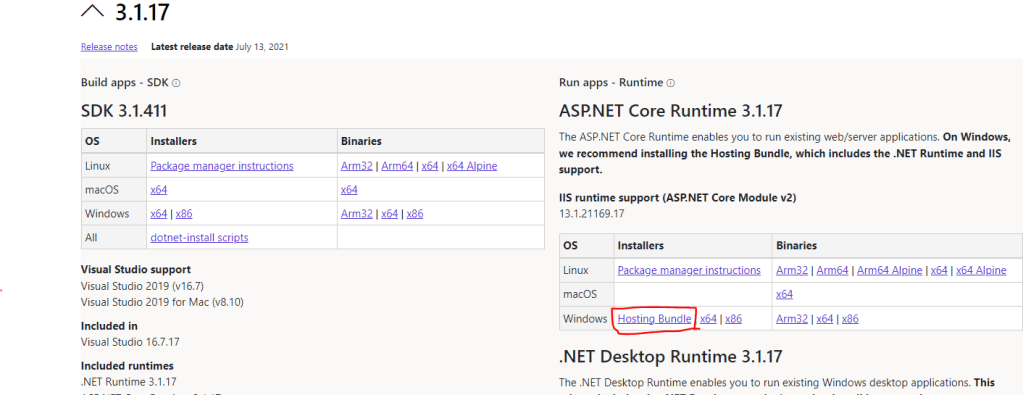
- Download and install ASP.NET Core Runtime 3.1.17 Hosting bundle here. Make sure it’s the hosting bundle (see pic below)
2. Install Publishing Service
- Extract the content of the package you downloaded in step 1 “Publishing Service .NET Core host” to desired location on disk. Preferably name it according to the site you will use it on.
- Copy in licensefile. In the root of your extracted folder create a new folder named “sitecoreruntime” and place your licensefile in it.
- Copy .dat files (If on Sitecore 10.1 and higher do this step. Otherwise skip to next step)
– Create empty folders in publishing service root “<root>\items” and “<root>\items\sitecore“.
– Go to your Sitecore CM Website and open the items folder (<website>\App_Data\items) and copy the master and web folders.
– Paste the folders at <root>\items\sitecore. - Create IIS website for Publishing service.
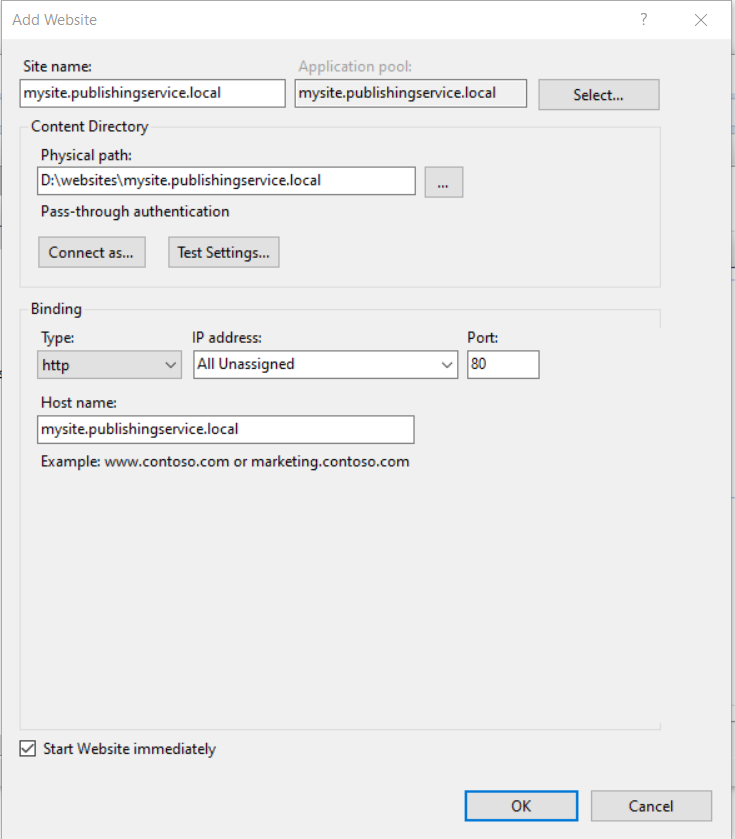
– Add new website in IIS with same hostname as your publishing service root name.
- Setup app pool…
– set .NET CLR Version = Select No Managed Code
– set Idle Time-out (minutes) = 0
3. Configure connectionstrings
- Open your command prompt and go to your publishing service root and set the core, master and web connectionstrings with the following command.
You should run this 3 times, one for each database (replace the <database> with core, master & web).
Replace *** to match your database connection and a User ID that has WRITE access.
- .\
Sitecore.Framework.Publishing.Host configuration setconnectionstring <database> Data Source=***;Initial Catalog=***;Integrated Security=False;User ID=***;Password=***;MultipleActiveResultSets=True;ConnectRetryCount=15;ConnectRetryInterval=1
- .\
- This creates a file under <root>\sitecoreruntime\Production\config named sc.publishing.xml.
You can look inside it to confirm your connectionstrings for each database.
4. Upgrade database schema
Now it’s time to upgrade the database schema with the connectionstrings from step 3. As I wrote, you need write access on the user you put in the User ID. In command prompt go to your root of the publishing service. Execute following
.\Sitecore.Framework.Publishing.Host.exe schema upgrade --force5. Check status
Go to your publishing service website in a browser http://<publishingservice>/api/publishing/operations/status
If you see {“status”: 0 } you publishing service is up and running correctly.
6. Install the module
Download the module that match your Sitecore version here then install it in Sitecore with the installation wizard. https://dev.sitecore.net/Downloads/Sitecore_Publishing_Service_Module.aspx
7. Add sitecore setting in config file
Last step is to add the following setting in an appropriate config or create a new one.
<configuration xmlns:patch="http://www.sitecore.net/xmlconfig/">
<sitecore>
<settings>
<!-- The HTTP endpoint for the service -->
<setting name="PublishingService.UrlRoot" value="http://{Your Publishing Service Website URL Here}"></setting>
</settings>
</sitecore>
</configuration>8. Done
Enter Sitecore and see the new interface and confirm that the publish works.
You can still patch the Sitecore.Task.PublishAgent agent to make publishing service run automatically in an interval. Check more here on scheduling https://joaoneto.blog/publishing-service-scheduled-publishing/
Thanks for reading and hope this help your installation proccess!
Resources
I had almost finished writing this post when I saw this similar and great post by Vivek. There is also a troubleshoot section at the bottom. Please check it out https://learnwithmemes.wordpress.com/2022/09/02/sitecore-publishing-service-feature-installation-guide/
Also another great post by Vincent explaining more about Publishing Service https://vincent-lui.medium.com/sitecore-publishing-service-the-good-the-bad-and-the-ugly-74a9c17c9e16
 Sitecore Tackled