I was following this amazing video guide from Rob at Sitecore on how to setup Vercel Next.js commerce site with OrderCloud integration. You should check it out for a fast and easy start with OrderCloud and and Vercel.

When I followed the video guide I got a lot of errors on some steps when setting it up locally. This is just because we all have different machines, versions running etc. So nothing unusual.
But I thought I’d do a blogpost about the errors I found during the installation process so it might help anyone else if they get stuck in the process following the guide to setup a Vercel project with OrderCloud.
Note
You shouldn’t just trust someone who says you should run terminal commands you don’t know what they do. Same goes for me. Therefore I’m linking to all the official sites on each step. If you’re still unsure talk with someone in your organization.
- If you get the same error and did the solution, try restarting your terminal as this is required for some operations.
- Run terminal as administrator
Let’s start
1. npm i -g vercel
npm i -g vercel doesn’t work.
Check your node version. It needs to be the same as in your Vercel project. Go to Settings -> General and scroll down to the section Node.
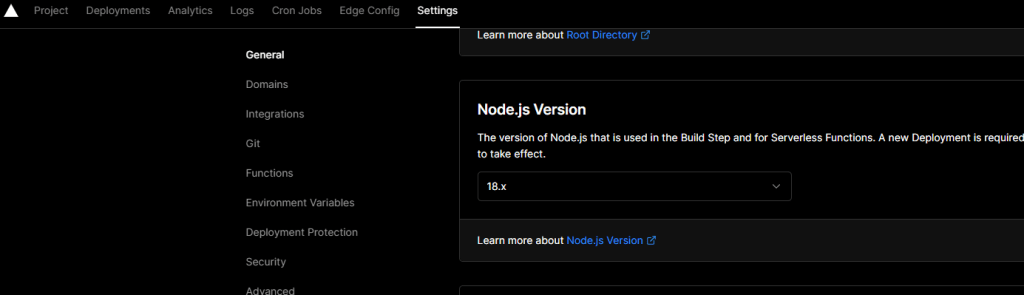
- In your terminal in the project root. Run node -v
- I recommend installing nvm – Node Version Manager. This makes it so you can have multiple node versions installed and you can switch between the different versions in your terminal like in the image below. (Link: https://github.com/nvm-sh/nvm)
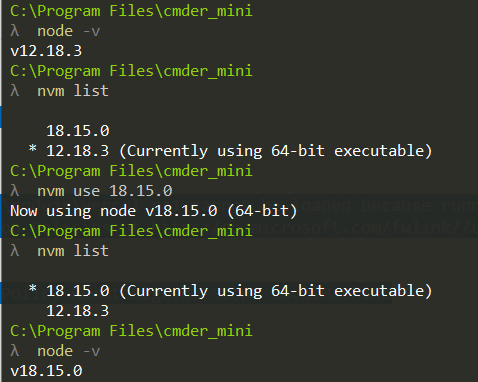
If you’ve installed nvm check your node versions by running nvm list. If you don’t have the version in nvm list that you need. You can install LTS (Long term support) or a specific version like this:
- nvm install –lts
- nvm install 18.15.0
Then refer to the image above on how to switch between node versions. You should now be able to run npm i -g vercel as in the video guide.
2. vercel link
vercel link throws this error:
vercel : File C:\Program Files\nodejs\vercel.ps1 cannot be loaded because running scripts is disabled on this system. For more
information, see about_Execution_Policies at https:/go.microsoft.com/fwlink/?LinkID=135170.
Run this command then restart your terminal (Can’t run command? Are you running terminal as administrator?):
Set-ExecutionPolicy -ExecutionPolicy RemoteSigned -Scope LocalMachine
(Link to Microsoft explanation on Set-ExecutionPolicy https://learn.microsoft.com/en-us/powershell/module/microsoft.powershell.security/set-executionpolicy?view=powershell-7.3)
Now try again running vercel link
3. exec: “pnpm”: executable file not found in %PATH%
When trying to run npm run dev you get this error?
exec: “pnpm”: executable file not found in %PATH%
You need to run this command to install pnpm (Link to pnpm https://pnpm.io/installation)
iwr https://get.pnpm.io/install.ps1 -useb | iex
4. command (<path>\packages\spree) pnpm run dev exited (1)
If you still get errors even after installing pnpm in previous step.
Run pnpm install in this context to install it to your repository.
Conclusion
After these steps I had my Vercel project running locally.
Hopefully someone stuck on any of these problems find their way here.
Good luck!
 Sitecore Tackled