Alt texts are more important than people might think. They can make a huge difference in SEO scoring, placing you higher up in the search results like Google or Bing. Your alt-texts should be more than just “bird”, if it’s an image of a bird. Because it also gives value to those with any visual impairments for instance. So for example “A green hummingbird hovering next to a flower” gives more value than just “bird”.
But for me personally, it’s just as “hard” to write alt texts as it is to choose an icon in Sitecore for my components 😉
So to make life easier I thought I’d show an implementation of how to generate alt texts that give value using Microsoft Computer Vision. We’ll then generate the alt text to our image in Sitecore as an editor.
1. Prepare your Azure Computer Vision
First you must setup a Computer Vision in your Azure account. You’ll need the keys from that to get the data in code.
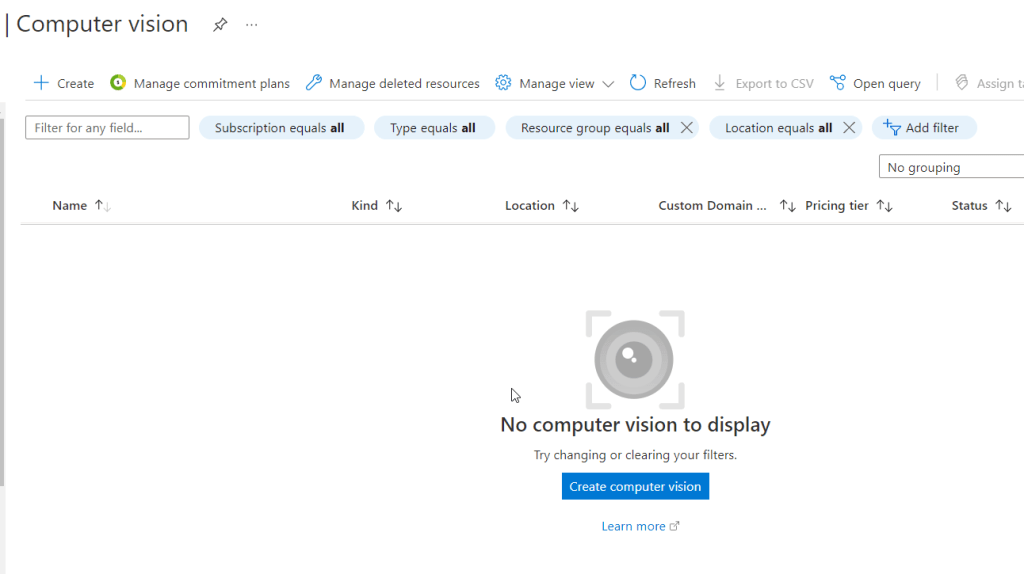
Locate Computer Vision and press “Create computer vision”
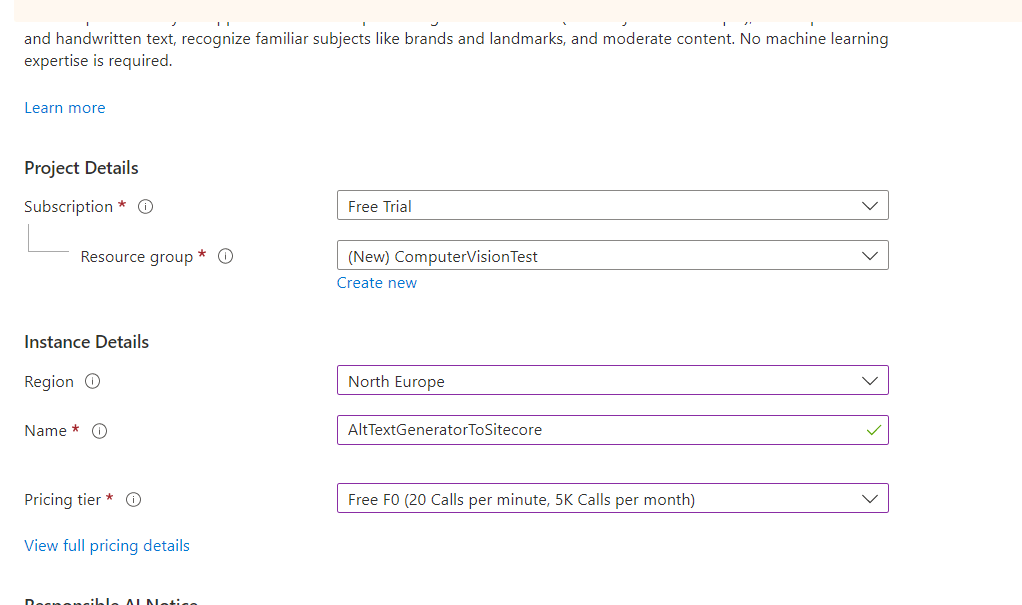
Sample setup of computer vision.
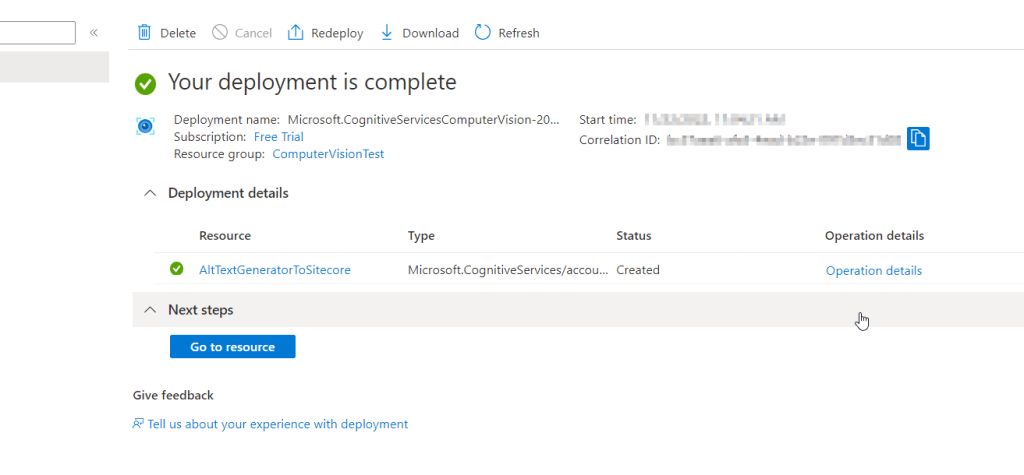
After it deploys, click on the resource link or in this case “AltTextGeneratorToSitecore”.
You will need the key and endpoint from the resource you create to connect your application to the Computer Vision service. You’ll paste your key and endpoint into the code later.
2. Nuget reference
Either create a new project or fit the code in an existing project.
First, you need to reference the Microsoft.Azure.CognitiveServices.Vision.ComputerVision nuget package to your code by using the Nuget Package Manager or IDE
NuGet\Install-Package Microsoft.Azure.CognitiveServices.Vision.ComputerVision -Version 7.0.1
3. Code
Get the Key and Endpoint for the code below. You can find your key and endpoint in the resource’s key and endpoint page, under resource management.
public class AltTextGenerator : Command
  {
    static string subscriptionKey = "<Your_key>";
    static string endpoint = "<Your_endpoint>";
    public override void Execute(CommandContext context)
    {
      ComputerVisionClient client = Authenticate(endpoint, subscriptionKey);

      var item = context.Items[0];

      Sitecore.Data.Items.Item sampleMedia = new Sitecore.Data.Items.MediaItem(item);
      string imageUrl = Sitecore.StringUtil.EnsurePrefix('/', MediaManager.GetMediaUrl(sampleMedia, MediaUrlBuilderOptions.GetShellOptions()));

      imageUrl = "<hostname>" + imageUrl;
      byte[] imageByte;
      using (WebClient webClient = new WebClient())
      {
        imageByte = webClient.DownloadData(imageUrl);
      }

      var altText = AnalyzeImageUrl(client, imageByte).Result;

      if (string.IsNullOrEmpty(altText))
      {
        Sitecore.Context.ClientPage.ClientResponse.Alert("No alt text could be generated for this image");
        return;
      }

      using (new Sitecore.SecurityModel.SecurityDisabler())
      {
        item.Editing.BeginEdit();
        try
        {
          item["Alt"] = altText;
          item.Editing.EndEdit();
        }
        catch (Exception)
        {
          item.Editing.CancelEdit();
        }
      }
    }

    public static ComputerVisionClient Authenticate(string endpoint, string key)
    {
      ComputerVisionClient client =
        new ComputerVisionClient(new ApiKeyServiceClientCredentials(key))
        { Endpoint = endpoint };
      return client;
    }

    public static Task<string> AnalyzeImageUrl(ComputerVisionClient client, byte[] imageByte)
    {
      List<VisualFeatureTypes?> features = new List<VisualFeatureTypes?>()
      {
        VisualFeatureTypes.Description
      };

      string altText = string.Empty;
      using (Stream analyzeImageStream = new MemoryStream(imageByte))
      {
        var result = client.AnalyzeImageInStreamAsync(analyzeImageStream, visualFeatures: features).Result;
        analyzeImageStream.Close();
        if (result.Description?.Captions != null)
        {
          var caption = result.Description.Captions.FirstOrDefault();
          altText = caption?.Text;
        }
      }
      return Task.FromResult(altText);
    }

    public override CommandState QueryState(CommandContext context)
    {
      return context.Items.Length != 1 ? CommandState.Hidden : base.QueryState(context);
    }
  }
4. Create Command item in Sitecore
We must create a config for our command button in Content Editor.
<configuration  xmlns:patch="http://www.sitecore.net/xmlconfig/">
  <sitecore>
    <commands>
      <command name="contenteditor:alttext" type="MyProject.AltTextGenerator, MyProject"/>
    </commands>
  </sitecore>
</configuration>
In Sitecore, switch to Core database and navigate to /sitecore/content/Applications/Content Editor/Ribbons/Contextual Ribbons/Images/Media and create a new Large Button.
It should look something like this
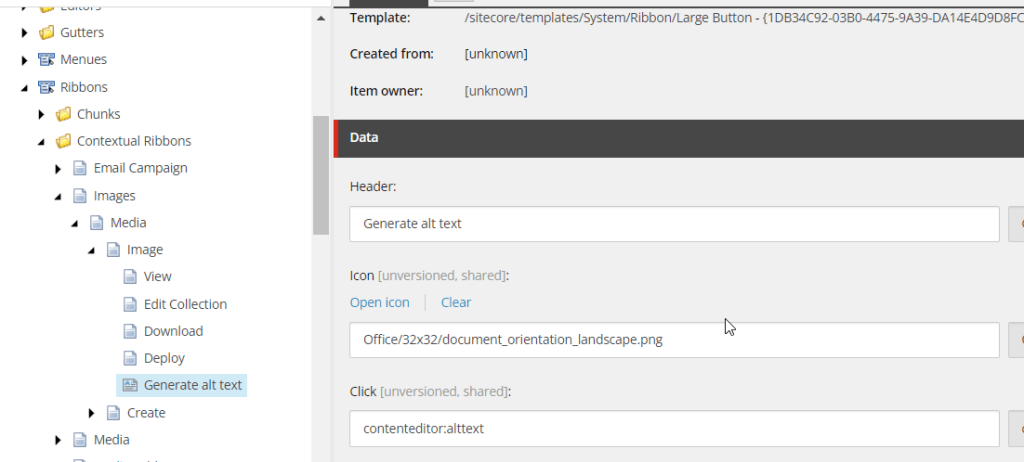
Now when you go to the media library and select an image you can autogenerate an alt text by pressing the new custom button we made.

This is my example image, I will now generate an alt text to it

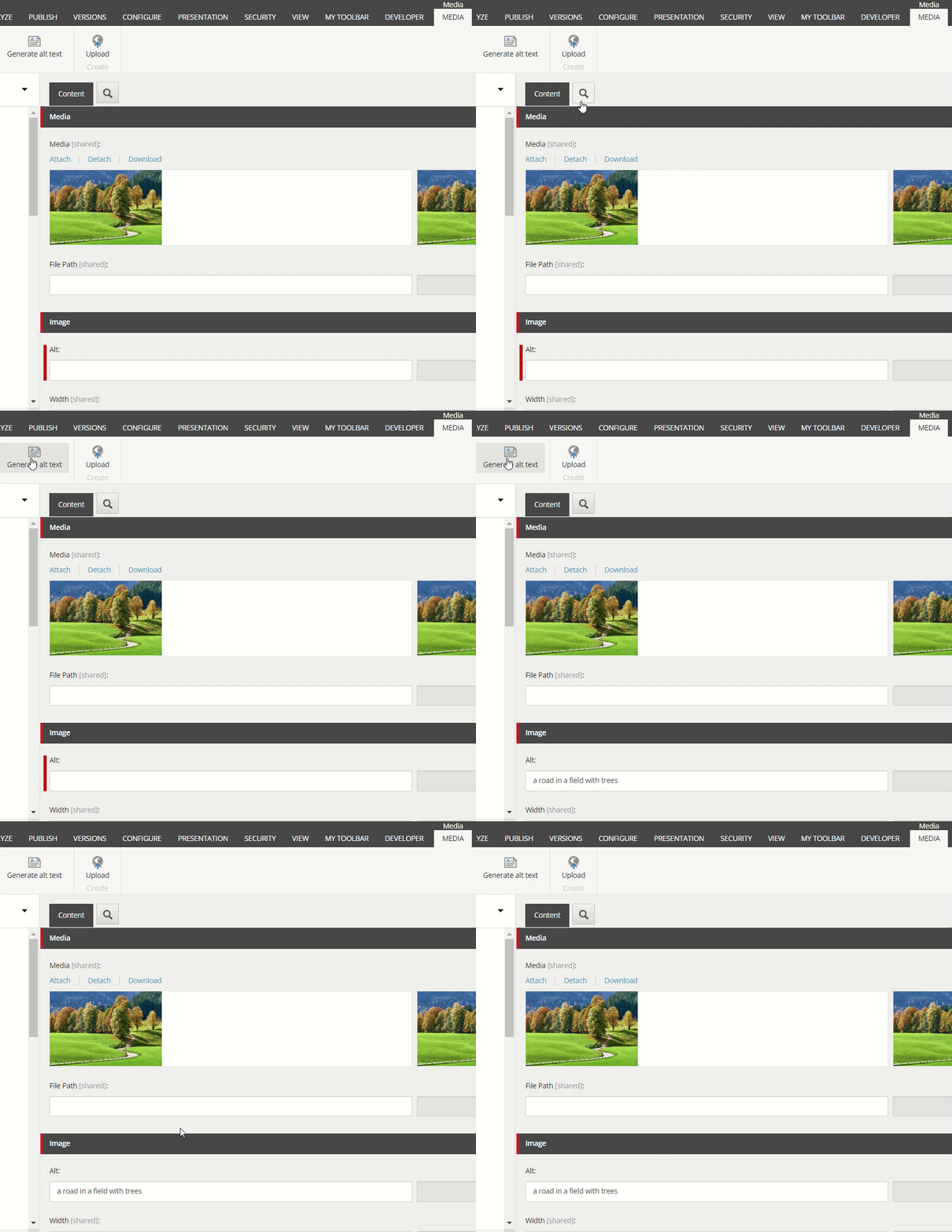
Voilà! Works like a charm.
You could use other Features than just Description from the Image Analysis.
Read more in sources below.
You could also implement some conditions on the confidence score if you think it will generate bad results.
Would love to hear if you have any ideas how this idea could be improved or extended!
Sources
https://portal.vision.cognitive.azure.com/demo/image-captioning

